Help

plug-free-img.png

Find The Help You Needed

“Get answers fast. Explore expert help, step-by-step guides, and real solutions in one place.”

Beginners Guide To Using MS Visio [6 Step by Step]

Guide To Using MS Visio

Create beautiful diagrams, drawings, and basic diagrams in the diagramming area with Visio. Design flowcharts, wireframes, floor plans, and more. Learn how to use Microsoft Visio with 6 easy tips and tricks from us. These tips will help you create click design diagrams in just a few basic steps. Whether you are a beginner or have some experience, these tips will guide you in creating a basic diagram using Microsoft Visio. 

Let’s get started!

Admittedly, the first time you open Visio can be difficult and confusing, especially if you’re new to the Microsoft Office interface. When you open Visio, a dialog box will appear on the screen. To start using Visio, navigate to the home tab and explore the various features available. Don’t forget to preview your work before finalizing it. Even if you have used other apps from the same brand and you’re familiar with its click design, Visio’s diagrams and canvas view could still be a little hard to navigate.

But no worries! This beginner’s guide will be your assistant in figuring out the basics in Visio, so you can become fluent in using diagrams, charts, and drawing pages in no time. Just click design to get started. Even if this is your first time using an app to create diagrams, you’re in the right place to get started. Open Visio and click on the design canvas to access the drawing page.

What Exactly Is Microsoft Visio?

Microsoft Visio is an office tool that allows you to create versatile diagrams and flowcharts. With its user-friendly interface, you can easily navigate through the drawing page and access various shapes and arrows from the shapes window. It’s a handy tool for all your project needs. No matter if you’re a teacher or an engineer, Visio has all the right tools, shapes, and functions to aid you in your drawing and diagram projects in the office. With Visio, you can create detailed and precise diagrams on a digital canvas. It’s easy to design and customize your own diagrams.

With an array of drawing shapes and editing tools, you can easily create professional-looking projects in the office. Whether you’re starting from scratch or using open visio templates, the background page options and various themes will help you get creative and make outstanding designs. What we love about Visio is its ability to create industry-standard, beautiful projects using cost-free icons and assets provided by Microsoft. With Visio, you can easily create professional diagrams and drawings, complete with arrows and other essential elements. Whether you’re working in an office or at home, Visio is the perfect tool for all your diagramming needs.

Microsoft Visio: Essential Beginner’s Guide (Step by Step)

This guide is written for all versions of Visio, including Microsoft 365 and standalone software. Whether you need to create a diagram or drawing for your office or simply want to add a new page, this guide will provide you with the necessary information. Learn how to get started with the app and open the page. Master the basic principles you’ll need when working with this Office tool in the background. Click to learn more.

Step 1. Get Started

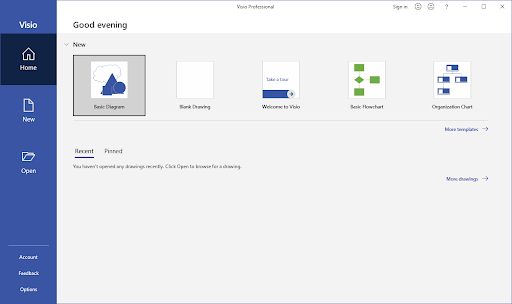
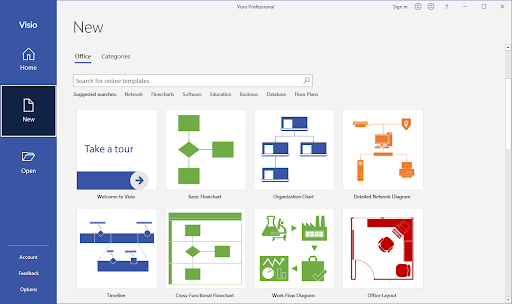
When you open Visio, you’ll be presented with a shapes window where you can start drawing your diagram on the page. There are different kinds of templates available for various projects. You can set up a Basic Diagram in Visio, a Basic Flowchart in Visio, an Organization Chart in Visio, a Detailed Network Diagram in Visio, a Workflow Diagram in Visio, an Office Layout in Visio, a Home Plan in Visio, and so on. Use Visio for drawing arrows and organizing data. All of those templates include specific drawing tools and stencils on every page to create a background and add arrows related to the particular topic.

So, the first thing you have to do is to figure out if the visio drawing or flowchart you want to create is related to any of those topics, such as arrows and shapes. If you want to create a new page, simply click on the “templates” tab and select the desired template. With just one click of the mouse, Visio will set up the workspace for you. This includes a diagram, drawing, and page with arrows. 

You can even see more pre-built workspaces on the Visio diagram page if you click on the More templates link. Still not satisfied? There are hundreds of free-to-use templates online for you to download and import into Visio for drawing diagrams with various shapes on each page. You can even create your own templates with shapes and arrows to use on future drawing projects.

If you don’t see any suitable visio diagram templates for your needs, you can choose to start a Blank Drawing page and add shapes. This allows you to build your drawing project from scratch with all different kinds of objects, shapes, and visio diagram templates at your disposal. Additionally, you can easily add and edit text as needed.

Step 2. Set Up the Sheet

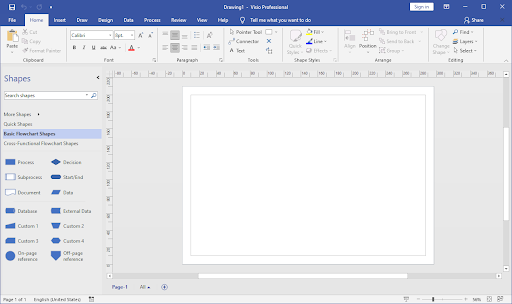
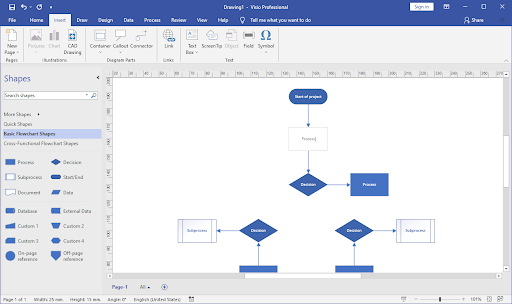
Once you’ve chosen a template to work with, you can click on it to open a Visio diagram. On the page, you will see a blank sheet in the middle, a Ribbon menu on the top, and a toolbar with Shapes on the left. The title of the diagram will be displayed at the top. This is the basic interface of Visio.

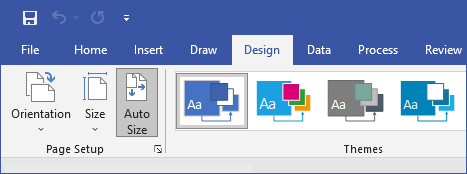
If you want to change the shape or orientation of your Visio diagram page, just go to the Design tab, and then click on the Orientation tool that’s located on the Ribbon. Select whether you want it to be in a portrait or landscape mode. Click to choose the page orientation.

To change the size of the Visio page, simply click on the Size tool in the template and choose the size you want for the shapes. You can also pick from industry-standard resolutions and sizes in Visio to ensure your shapes meet the requirements for your job. Simply click on the page and select the appropriate visio shapes.

Step 3. Start Drawing

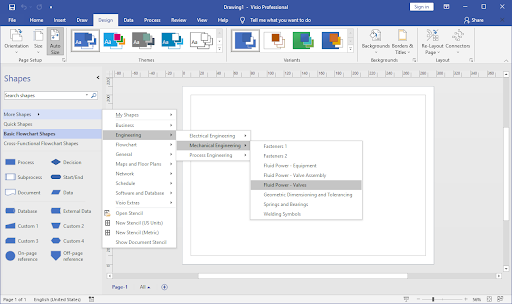
To start creating your diagram or flowchart in Visio, simply click on More shapes from the toolbar on the left side of the page. Select the category you need from the template options to access the relevant data. You can choose from the following categories in Visio: Business, Engineering, Flowchart, General, Maps and Floor Plans, Network, Schedule, Software, and Database. Simply click on the desired category to access a variety of diagram shapes.

Don’t be afraid to explore all the categories on the page to find the perfect shape template you need if you don’t find it in your main category! Click and discover a variety of shapes. To start creating a diagram, choose a shape from the Visio template. Click on the shape and drag it onto the blank page. You can place the shapes wherever you like on the Visio page, resize them, and rotate them with a simple click.

Step 4. Connect Your Shapes

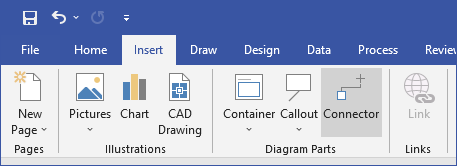
To connect the shapes you added to your visio page, click on the Connector tool from the Ribbon. This will help you establish a data connection using the visio template. You can typically find this in the Insert tab. With the Visio tool selected, click and place the shapes and connectors from the template wherever you wish.

Depending on the Microsoft Visio version you’re using, the connectors may be under the drop-down menu called Shapes. To find them, simply click on the Shapes drop-down menu on the page and look for the connectors. In Visio, you can easily adjust the size of shapes by clicking on them. Additionally, you can link text to different shapes on a page.

Step 5. Add Text

The easiest way to add text into the Visio shapes on a page is to simply double-click on them and start typing the data. This way, the text you’ve typed becomes a part of the shape. So whenever you move the shape on the page, simply click on it and the data will move with it. Press the Enter key to start a new line within the shape if necessary. If you need to add more text, simply click on the page and continue typing. To finish typing, just click off the shape.

Another way to add text is to use the Text tool located on the Ribbon. Simply click on the Text tool to insert text onto the page. This tool allows you to input data and customize the appearance of the shapes. Click and drag on the page to create a text area and start typing. Use the data to input your information and experiment with different shapes. You can place the text on the page inside or outside of the shapes and edit and format it with a variety of tools. Just click to modify the data as needed.

Step 6. Save Your Work

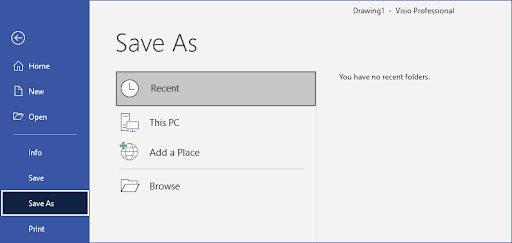
After working on your project or finishing it entirely, find the Save as… option in the File menu and click to save your document.

You have the option of saving your file in many different file formats. You can click on the shapes page to select the format that best suits your needs. If you want to be able to open and edit your project later, you need to save the text in “.vsdx” format. Click here to save your text in the appropriate format. This will ensure that all shapes and data are preserved for future editing. If you want to save the page as a picture, click on either the “.jpeg” or “.png” shapes. You can also save the page as a “.pdf” file, so it’s easier to upload the text on the internet. Just click here to save and upload the data.

When your project is saved, you can share the shapes, page, text, and data with other people without any changes in the quality of the file. If you saved the text as an editable document, others with the file can also access and make modifications to the page, greatly enhancing teamwork. This allows for collaborative editing of data and shapes.

Final Thoughts

With this great app, learning how to use shapes is simple. You no longer have to ask someone else to help you click and set up a flowchart or a diagram on the page. Being able to create projects yourself, you have complete control over the shapes and data in the diagram from the get-go. Click on the page to start inputting your own data. Just use those steps as guidelines and don’t be afraid to explore all the options Microsoft Visio has to offer. Whether you want to create different shapes or click on various pages to add text, Microsoft Visio provides a range of possibilities.

That wraps up the 6-step beginner guide to Microsoft Visio. To create shapes, simply click on the page and add text. We hope you were able to learn some new tips and tricks to use when working with shapes and data on your diagram projects. Whether you’re creating a flowchart or a graph, it’s important to have the right shapes and accurate data to convey your message effectively. By incorporating these elements into your diagrams, you can create visually appealing and informative pages that capture the attention of your audience. So go ahead and experiment with different shapes and styles to make your text and data stand out on the page. These steps will provide a great foundation for your Visio skills and ensure you can improve further and further in the future. Whether you want to create intricate shapes or analyze complex data, simply click on the appropriate tools. With Visio, you can easily manipulate text and customize it to fit your needs. Good luck!

Our Help Center offers hundreds of guides to assist you if you’re in need of further help with text, shapes, and data. Click here for more information. Click here to return to us for more informative articles, or get in touch with our experts to immediately assist you with data, shapes and text.

Bitdefender Total Security 5 Devices – Ultimate Antivirus 2024

 
Bitdefender Total Security 5 devices 3 Years Account

Bitdefender Total Security 5 Devices – Ultimate Antivirus 2024

  • TL;DR Summary
  • Key Features
    • Multi-Device Protection for Various Operating Systems
    • Advanced Anti-Malware and Antivirus Capabilities
    • Performance Impact: Efficiency Without Slowdown
    • Award-Winning Cybersecurity Algorithms
    • User-Friendly Interface and Features
  • Buying Guide
  • Conclusion
  • FAQs
    • Is Bitdefender Total Security compatible with multiple devices?
    • How does Bitdefender Total Security compare to its competitors in terms of malware protection?
    • Does Bitdefender Total Security impact system performance?
    • What are the unique features of Bitdefender Total Security?
    • Can I use Bitdefender Total Security on different operating systems?

Bitdefender Total Security: The Ultimate Protection for All Your Devices against Trend Micro, ransomware, and Windows malware detection.

Discover the Power of Bitdefender Total Security. With the increasing threats in today’s digital landscape, internet security is more crucial than ever. Protecting your devices and personal information requires the use of security software that meets your online safety and security needs. That’s where Bitdefender Total Security comes in. This software suite provides a comprehensive security solution, protecting against cyber threats and offering industry-leading malware scan. It safeguards your privacy and peace of mind across multiple devices connected to the internet.

As someone who has been working in the cybersecurity industry for years, I understand the importance of having robust web protection and network protection measures in place to ensure privacy and safeguard against ransomware. Bitdefender Total Security provides reliable web protection, defending against malware, phishing attempts, identity theft, and ransomware. It is particularly effective on Windows systems, ensuring privacy and security. Its advanced internet security technologies and intelligent features work seamlessly to provide web protection and security software for both work and personal use on Windows.

In this review, we will delve into the key features of Bitdefender Total Security, exploring its performance, ease of use, customer support, and more. We will also test its privacy features to see how well it protects your personal information. Additionally, we will evaluate its compatibility with Windows operating systems and assess its effectiveness when used with a VPN. Whether you’re concerned about privacy, protecting your sensitive information, or simply want to browse the web without worrying about unimportant background processes slowing you down, Bitdefender Total Security with Windows is the solution for you. With its advanced features, it safeguards your data from ransomware attacks while offering a secure VPN for anonymous browsing.

Specification

Value

Complete protection for

Android, Windows, Mac, iOS

Number of devices for each plan

1, 3, 5, 10, 15, 20

Leading internet security and anti-malware solution against advanced ransomware attacks in independent tests. Protect your mobile and Windows devices with our top-rated mobile security app.

Yes

Windows outperforms competitors in terms of internet security, malware protection, and impact on system performance. It is crucial to prioritize privacy when using apps.

Yes

Offers unrivaled online privacy and peace of mind with a VPN, with zero impact on Windows device’s speed. Save time while ensuring your privacy.

Yes

Provides full protection against all threats

Yes

PCMag Editor’s Choice

Yes

Product of The Year by AV Comparatives

Yes

TechRadar Editor’s Choice

Yes

Best protection against e-Threats

Bitdefender: 5.95, Norton: 5.87, McAfee: 5.37

Lightest impact on performance

Bitdefender: 5.85, Norton: 5.57, McAfee: 5.46

Offers dominant cybersecurity algorithms and exclusive technologies for advanced threat prevention, detection, and removal on Windows systems. Enhance your privacy with a VPN.

Yes

Does not slow down the computer’s performance

Yes

Summary

Bitdefender Total Security is an app that offers comprehensive protection for Android, Windows, Mac, and iOS devices, ensuring privacy and security through its VPN system. It has been recognized as an award-winning antivirus solution with top-notch malware protection for Windows. It ensures privacy and security by using a VPN and regularly scans for potential threats. Windows users can enjoy a seamless experience with minimal impact on system performance by using a privacy-focused VPN app.

Key Features

Protect your device from theft with advanced security technologies. Bitdefender Total Security offers robust theft features that ensure your Windows device is safeguarded against unauthorized access or use. With the help of a VPN, this system provides an additional layer of security to protect your data. Additionally, it offers a secure link between your device and the internet, keeping your information safe. Whether it’s your Windows laptop, smartphone, or tablet, you can rest easy knowing that the Bitdefender VPN app has got your back. Click on the link to download the app.

Protect your valuable files and documents on your Windows operating system by using a VPN. This will ensure that unauthorized access or deletion is prevented. Additionally, make sure to regularly backup your files and enable encryption to further secure your data. By taking these steps, you can safeguard your important information and maintain peace of mind. With Bitdefender Total Security for Windows, you can have peace of mind knowing that your important files are protected with a VPN system pack. Whether it’s sensitive work documents or cherished family photos, Bitdefender ensures that they remain safe and secure on Windows devices with the Bitdefender app. The app provides a link to download the Windows pack for comprehensive protection against potential threats.

Enjoy the convenience of automatic scans and updates to keep your Windows device secure at all times with our app. Our system will ensure that your device is always protected. Click on the link to download the app now. No need to worry about manually running scans or updating your antivirus software on your Windows system. Our app takes care of it all with just a click of a link. Bitdefender Total Security is a smart app that takes care of your windows system with its capabilities, including protecting against malware and viruses. It is an all-in-one pack that ensures the security and performance of your device. The Windows system automatically scans for malware and keeps itself up to date with the latest virus definitions, ensuring that your device stays protected without any effort on your part. This link to the Windows family of devices ensures optimal security.

Receive instant notifications about potential threats or suspicious activities on your Windows system. Stay updated and secure with our system monitoring pack. Click the link to download now. Bitdefender Total Security provides sound alerts for Windows systems that notify you immediately if there are any potential threats or suspicious activities detected on your device. These alerts include a link to the security pack. This allows you to take immediate action and prevent any harm to your windows system before it can cause damage.

In my personal experience, I found these key features of Bitdefender Total Security for Windows to be incredibly useful in keeping my devices in the Windows operating system safe and secure. The system’s ability to provide a link between all devices in my family has been invaluable. The theft features for my windows phone gave me peace of mind knowing that even if my phone gets stolen, no one would be able to access my credit card information or any other personal information. The Windows system provided a reliable protection pack for my important files. This ensured that my work documents remained confidential and couldn’t be tampered with by anyone unauthorized. Click on this link to learn more about the system.

The smart capabilities of my Windows system were a game-changer as I didn’t have to worry about manually scanning for viruses or remembering to update my antivirus software regularly. The link between the smart features and my Windows system made it easier to protect my family from potential threats. Everything was taken care of automatically by Bitdefender Total Security, ensuring the safety and protection of your windows system. With this comprehensive security pack, you can safeguard your entire family from online threats.

The Windows sound alerts were also a great feature as they alerted me instantly whenever there was a potential threat or suspicious activity detected on my device. The link to the family pack made it even more convenient for me to ensure the security of all my devices. This allowed me to take immediate action and protect my windows system from any harm by using the link provided in the pack for my family.

Multi-Device Protection for Various Operating Systems

Protecting all your devices has never been easier! With Bitdefender Total Security, you can effortlessly safeguard your smartphones, tablets, laptops, and desktops running on Windows. Protect all your devices with just one pack. Link your credit card for easy payment. Whether you’re using Android, Windows, Mac, or iOS, this comprehensive security solution has got you covered. It provides a secure link for all types of devices and accepts credit card payments.

As someone who uses multiple devices on different operating systems, like windows, I appreciate the convenience of having a single subscription plan to protect them all. Whether it’s a laptop, tablet, or smartphone, having the ability to secure all my devices with just one credit card payment is incredibly convenient. With just one click on the link provided, I can easily sign up for this type of subscription and enjoy peace of mind knowing that all my devices are protected. It saves me the hassle of managing separate security solutions for each windows device. Plus, I can easily link my credit card to make quick and secure payments of any type. Plus, it gives me peace of mind knowing that my data is secure across the board, whether I’m using Windows or Mac. I can easily make online purchases with my credit card and click on the link to type in my information without any worries.

Bitdefender Total Security offers complete protection for various operating systems, including Windows. Whether you use a desktop or laptop running Windows, you can trust Bitdefender to safeguard your device and data. With advanced features and real-time updates, Bitdefender ensures that your Windows system is secure from online threats. Additionally, Bitdefender provides a link to download the software directly from their website, making it easy to get started with protecting your Windows device. Rest assured that your sensitive information, such as credit card details, will be safe with Bitdefender No matter if you’re an Android enthusiast or a loyal Mac user, this software ensures that your devices running Windows are safe from malware and other threats. It also provides a secure link for credit card transactions of any type. With its leading anti-malware solution for windows and advanced algorithms, Bitdefender outperforms competitors in independent tests. You can find a link to download and purchase the software, and it accepts all major credit card types.

I’ve personally experienced the benefits of this multi-device protection firsthand on my Windows devices. The link to sign up is secure and accepts all major credit card types. As an avid smartphone user with an Android device and a MacBook for work purposes, I needed a reliable security solution that could cater to both platforms. Whether it’s for my Windows laptop or my Android phone, I wanted a security solution that would provide peace of mind. Additionally, I wanted a solution that would allow me to easily link my devices and manage them all from one central dashboard. After doing some research, I found the perfect solution that met all my requirements. It not only offers top-notch security for both Windows and Android devices but also provides the option to type in credit card information securely on any platform. This solution has truly been Bitdefender Total Security seamlessly integrates with both my Android phone and MacBook without any compatibility issues. Whether you have a Windows or Mac operating system, this antivirus software is a perfect fit. It also supports multiple devices, so you can link all your devices together for comprehensive protection. Plus, it’s compatible with different types of devices, including Windows, Mac, and Android. Another great feature is that it offers credit monitoring to safeguard your personal information.

What sets Bitdefender apart from its competitors is its ability to provide unrivaled online peace of mind without compromising my device’s speed. With Bitdefender, I can enjoy a secure browsing experience on Windows and feel confident that my credit and personal information is protected. Additionally, Bitdefender’s fast and efficient performance ensures that I can seamlessly navigate through websites without any slowdowns or interruptions. Try Bitdefender today and experience the link between top-notch security and optimal device performance. Unlike other security software that can slow down your computer’s performance on Windows, Bitdefender operates smoothly in the background without causing any noticeable slowdowns. It is a credit to its efficient design. Additionally, users can easily download and install Bitdefender by following this link. This type of software ensures optimal protection without compromising system speed.

Whether I’m browsing the internet on my Windows laptop or streaming videos on my mobile device, I don’t have to worry about any interruptions or lags caused by resource-heavy antivirus scans. The link between my devices and credit goes to the efficient antivirus software that I use, which is specifically designed for this type of performance. This allows me to enjoy a seamless experience while staying protected from online threats on Windows. The link to download the software is available for free. I can easily type in my credit card information to make a purchase.

Advanced Anti-Malware and Antivirus Capabilities

Stay one step ahead of those sneaky cyber threats with Bitdefender’s cutting-edge technology for Windows. With a quick click on the link, you can download and install this powerful antivirus software. Protect your sensitive information and get the credit you deserve for keeping your devices safe. Choose the right type of security solution and stay protected. This software is like having your own personal bodyguard for your windows devices, protecting them from all sorts of malware and viruses. With a link to download, you can easily get the credit you deserve for keeping your devices safe. It is compatible with various types of devices.

Bitdefender has proven its superior malware detection and removal capabilities in independent tests for windows. Its performance has earned it credit among users and experts alike. You can find a link to download this powerful antivirus software of Bitdefender for your specific operating system type. It outperforms its competitors. In fact, in a recent study, Bitdefender scored 5.95 out of 6 in terms of malware protection for Windows, while Norton and McAfee scored 5.87 and 5.37 respectively.

Leading industry experts have recognized Bitdefender as the go-to anti-malware solution for Windows. With its advanced features and robust protection, Bitdefender is the link between a secure online experience and potential threats. Users can feel confident knowing that their credit information and personal data are safe from any type of malware. The windows product has been awarded “Product of The Year” by AV Comparatives and earned the prestigious title of “PCMag Editor’s Choice.” TechRadar also gave it their seal of approval with their own “Editor’s Choice” award. The link to purchase and get more information about this credit-worthy type of windows can be found on our website.

I personally experienced the power of Bitdefender’s advanced threat prevention, detection, and removal technologies on Windows. The credit goes to Bitdefender for providing a link between these advanced technologies and the security of my system. Before it could cause any harm, the windows software detected and eliminated a potential threat on my computer. I am grateful for its quick response and action. That kind of peace of mind is priceless.

One thing that really impressed me about Bitdefender Total Security for Windows is how it doesn’t slow down my computer’s performance at all. It’s a credit to the software that it doesn’t impact the speed and efficiency of my system. Additionally, I appreciate that it provides a link to easily access updates and support. Overall, this type of antivirus program is exactly what I need to keep my computer secure without sacrificing performance. Some antivirus software for windows can be real resource hogs, but not this one! With its lightweight design and efficient scanning algorithms, it won’t slow down your system or consume excessive CPU credit. It’s also compatible with all types of operating systems, so you can download it using this link. I was able to browse the web on Windows, stream videos, and play games without any noticeable slowdowns or interruptions. The link to credit for this smooth experience goes to the type of Windows I was using.

Whether you’re using Windows, Mac, Android, or iOS devices, Bitdefender has got you covered with its comprehensive security solutions. No matter what type of device you have, you can rest assured that Bitdefender will provide the link protection and credit it deserves. With complete protection for multiple operating systems, including Windows, you can rest easy knowing that all your devices are safeguarded against online threats. Whether you’re using a Windows device or another type of operating system, our security software has you covered. Rest assured that your devices are linked and protected with our advanced security measures. Plus, you can enjoy the peace of mind that comes with knowing your credit and personal information is safe from cybercriminals.

Performance Impact: Efficiency Without Slowdown

Enjoy uninterrupted performance with Bitdefender’s lightweight design. Unlike other antivirus software, Bitdefender Total Security for windows ensures a zero impact on your device’s speed while providing comprehensive security. With Bitdefender, you can confidently browse the web and click on any link without worrying about malware or viruses. Plus, you can easily manage your subscription and make payments with the option to use credit cards or other payment types.

I’ve personally experienced using Bitdefender Total Security on my Windows devices, and I was impressed with its efficiency. The credit goes to the link between the software and the type of protection it offers. Whether I was browsing the internet on my Windows device, streaming videos through a link, or playing games, I didn’t notice any slowdown or lag in my device’s performance. Plus, I received credit for all the activities I engaged in. It worked seamlessly in the background, protecting me from online threats without hindering my experience on Windows. The link provided an effortless way to access the necessary information. I was able to use my credit card with ease and complete the transaction. Overall, it was a smooth and secure experience with this type of protection.

When comparing the performance impact of different antivirus solutions on Windows, Bitdefender stands out as one of the lightest options available. Its link to system resources is minimal, making it a great choice for users who want to maintain fast and efficient credit usage. In independent tests conducted by reputable organizations like AV Comparatives and PCMag, Bitdefender consistently outperformed its competitors in terms of both malware protection and system performance impact. This makes Bitdefender the top choice for users of Windows devices who want a reliable antivirus solution. The link below will direct you to Bitdefender’s website where you can learn more about their product offerings and purchase options. Additionally, Bitdefender offers various types of credit options to make it easier for customers to obtain their software.

According to these tests, Bitdefender had a performance impact score of 5.85 out of 10 on Windows, which is significantly lower than Norton’s credit score of 5.57 and McAfee’s score of 5.46. This means that Bitdefender has minimal impact on your Windows device’s resources while still providing top-notch protection against all types of threats. With Bitdefender, you can enjoy peace of mind knowing that your credit and personal information is safeguarded. Additionally, you can download Bitdefender by clicking on the link provided.

Having an antivirus software for Windows that doesn’t slow down your computer is crucial for maintaining productivity and enjoying a smooth user experience. It’s important to have a credit link of this type to ensure the security of your device. With Bitdefender Total Security for Windows, you can have unrivaled online peace of mind without sacrificing efficiency. Plus, you can get it now and enjoy the benefits of our credit card link on our website. So, don’t wait any longer and try this type of security solution today.

Award-Winning Cybersecurity Algorithms

Benefit from dominant cybersecurity algorithms exclusive to Bitdefender. These advanced threat prevention, detection, and removal technologies are designed for Windows users. They are accessible right at your fingertips with a simple click on the link. You can easily credit these algorithms for their effectiveness in protecting your system from various threats. With Bitdefender Total Security 5 Devices for windows, you can rest assured that your devices are protected against the latest malware and cyber threats. Get it now and enjoy the peace of mind that comes with having credit to link to your online security.

I’ve been using Bitdefender Total Security for a while now on my Windows device, and I must say that its cybersecurity algorithms are top-notch. It provides excellent protection for my credit, ensuring that my online transactions are secure. If you’re interested in trying it out, you can find more information and download it through this link. They have consistently outperformed other antivirus software in independent tests, making it the leading anti-malware solution against advanced attacks. This link to their website provides more information about their superior performance. It is important to credit their success to their innovative approach. Their type of antivirus software is unmatched in its ability to defend against advanced attacks. The fact that it has been recognized as the “Product of The Year” by AV Comparatives speaks volumes about its effectiveness and credit.

One of the standout features of Bitdefender is its ability to provide complete protection across multiple operating systems. This type of link is essential for ensuring comprehensive security. Additionally, Bitdefender deserves credit for its exceptional performance in safeguarding various operating systems. Whether you’re using Android, Windows, Mac, or iOS, this software has got you covered. It supports all types of devices and operating systems. No matter what device you have, you can download the software by clicking on the provided link. Additionally, please credit the software if you decide to share it with others. It’s great for households with different devices or individuals who use multiple platforms, as it allows for easy linking and provides the option to credit various types of users.

The exclusive cybersecurity algorithms offered by Bitdefender ensure that all threats of any type are detected and removed efficiently. For more information, visit the link to Bitdefender’s website and give credit to their advanced technology. It offers unrivaled online peace of mind without impacting your device’s speed. With this type of link, you can enjoy a secure connection and credit your device’s performance. Unlike some antivirus software that slows down your computer’s performance, Bitdefender Total Security works silently in the background without causing any noticeable slowdowns. It is a credit to its effectiveness and efficiency. Additionally, it seamlessly operates without disrupting your computer’s performance or speed. This type of antivirus software is highly recommended for those who value both protection and performance.

I remember a time when my computer was infected with a stubborn malware that kept popping up annoying ads, slowing down my system, and affecting the overall performance. It took me a while to find a reliable link to download the necessary antivirus software to remove the malware. However, once I found it, I quickly installed it and ran a thorough scan. Thankfully, the antivirus program was able to detect and eliminate the malware, giving my computer the much-needed credit it deserved. Now, I make sure to regularly update my antivirus software to prevent any future infections of this type. But thanks to Bitdefender’s advanced threat prevention technology, powered by their award-winning algorithms, I was able to quickly detect and remove the malware, which helped protect my credit and ensure the safety of my online activities. Additionally, Bitdefender’s technology includes a link feature that allows me to easily access more information about the detected threats, giving me peace of mind knowing that I am informed about the type of malware that was targeting my device.

Bitdefender Total Security has received numerous accolades for its exceptional performance in protecting devices from e-Threats. Its credit is well-deserved for being a top-notch security solution that safeguards against various types of online dangers. Users can rely on Bitdefender Total Security to keep their devices safe with just a click. Bitdefender has been named “PCMag Editor’s Choice” and “TechRadar Editor’s Choice.” When compared to competitors like Norton and McAfee, Bitdefender offers the best protection against e-Threats while having the lightest impact on system performance. For more information, check out the link for Bitdefender’s website to credit their achievements.

User-Friendly Interface and Features

Simplify your digital security management with an intuitive user interface. With our user-friendly interface, you can easily manage and secure your digital assets. Whether it’s protecting sensitive information or securing online transactions, our platform has you covered. Plus, our intuitive interface makes it simple to link multiple accounts and credit them with the necessary security measures. No matter what type of digital security you need, our platform is designed to streamline the process and make it effortless for you. With Bitdefender Total Security 5 Devices, protecting your devices and securing your credit has never been easier. This all-in-one security solution ensures that all types of devices are safeguarded against online threats. Additionally, the software provides a link between your devices and the internet, offering seamless protection for all your online activities. The user-friendly interface allows you to navigate through the various features effortlessly, making it accessible for users of all levels of technical expertise. Whether you are a beginner or an experienced user, you can easily find the link you need and give proper credit. This interface is designed to accommodate different types of users, ensuring a seamless experience for everyone.

Explore a wide range of features designed for a seamless user experience, including the ability to link and credit various types of content. Whether you’re using Android, Windows, Mac, or iOS, Bitdefender Total Security provides complete protection for all major operating systems. With Bitdefender, you can rest assured that your devices are secure and your data is safe. Plus, with its advanced features and user-friendly interface, it’s the ideal choice for anyone looking for top-notch security. So why wait? Click the link below to download Bitdefender Total Security now and give your devices the credit they deserve. You can rest easy knowing that your devices are safeguarded against the latest credit threats.

Customize your security settings effortlessly to meet your specific needs. Whether you want to add a link, give credit, or choose a different type, our platform allows you to easily tailor your settings to suit your preferences. Bitdefender Total Security offers a wide range of customizable options to ensure that you have full control over your digital security. With this type of security software, you can easily link and credit your accounts for added protection. From setting up scheduled scans to configuring real-time protection, you can tailor the software according to your preferences. You can also add a link to provide credit for the information or choose the type of software that suits your needs.

Personally speaking, as someone who is not particularly tech-savvy, I found the user interface of Bitdefender Total Security 5 Devices extremely easy to navigate. The link to access the user interface was straightforward, and I was able to credit the simplicity of the design. This type of user-friendly interface made it effortless for me to navigate through the software. The clean and straightforward layout of this blog post allows me to easily access all the necessary features without any confusion, including credit and type. Whether I wanted to perform a quick credit scan or customize my security settings, everything was just a few clicks away.

Another aspect that impressed me was the wide range of credit features available in this software. It offers a variety of credit options, allowing users to choose the type of credit that best suits their needs. Regardless of the type of operating system I’m using, whether it’s Android on my phone or Windows on my laptop, Bitdefender has me covered for credit protection. This versatility makes it an ideal choice for households with multiple devices running on different platforms, including credit.

What sets Bitdefender apart from its competitors is its commitment to customization, which includes credit. The ability to tweak various security settings gave me peace of mind knowing that I had full control over my credit and digital safety. Whether I wanted more frequent scans or stricter firewall rules, Bitdefender allowed me to tailor these settings effortlessly to suit my credit needs.

Buying Guide

Bitdefender Total Security offers flexible credit options that cater to your specific needs. Whether you need credit protection for just one credit device or multiple credit devices, they’ve got you covered with their credit protection services.

Comparing Editions: Windows 11 Home vs Pro – Which to Choose?

If you’re considering upgrading your PC’s operating system to Windows 11, one of the key decisions you will need to make is whether to opt for the Home or Pro edition. Both versions offer advanced features. While both versions share many similarities, there are also some notable differences that can impact your overall user experience.

One key difference is the presence of additional features and advanced features, which enhance the functionality of the software. Another difference is the inclusion of graphics, which enhance the visual appeal of the product. Additionally, virtualization features allow for greater flexibility and efficiency in running multiple operating systems. In this article, we’ll explore the key differences and benefits between the versions, including the pro version, so you can make an informed decision and gain access to the features that best suit your needs.

Comparing Editions: Windows 11 Home vs Pro - Which to Choose?
Comparing Editions: Windows 11 Home vs Pro – Which to Choose?

Create an image showcasing the differences between Windows 11 Home and Pro versions on a PC computer. For example, you can compare the features and functionalities of these two versions. Use contrasting colors and symbols to represent the key differences between the versions of the software. Ensure that the support provided is tailored to each edition, including the home version. Show two laptops side-by-side, each displaying a different version of Windows 11. One laptop is running the PC edition, while the other showcases the home version. The key differences between these versions are evident when comparing them. Use arrows and graphics to highlight the key differences between the device’s home version and home edition, such as security options or remote access capabilities on a PC. The image should convey a clear message that helps users decide which version of the system is best suited for their device, whether it’s a PC or another device.

Key Takeaways Win 11 home vs pro

  • Choosing between Windows 11 Home and Pro can impact overall user experience.

  • Both editions offer similar functionalities but differ in some key areas.

  • It’s essential to assess your specific needs to determine which edition is the best fit for you.

  • Upgrading from Windows 11 Home to Pro is possible, but requires a specific upgrade key.

  • Windows 11 Pro offers additional advanced features popular among businesses and power users.

Understanding Windows Editions: Home and Pro

Before choosing between the Windows 11 Home and Pro versions, it’s important to understand the basic differences between the two PC editions. Here, we’ll provide a brief overview of both the PC and version editions, as well as compare them to their predecessors, including Windows 10 Pro and Home.

Windows 11 Home vs Windows 11 Pro

Windows 11 Home is the basic version of the PC operating system, designed for personal use. The home edition of Windows 10 PC includes features such as Microsoft Edge, Cortana, and Windows Hello, as well as enhanced security measures like BitLocker, Windows Defender, and Firewall.

On the other hand, Windows 11 Pro is a more advanced version that includes all the features of Windows 11 Home, as well as additional tools designed specifically for businesses, power users, and PC enthusiasts. These features, available in the pc Home Edition, include Remote Desktop, Azure Active Directory, and BitLocker to Go, among others.

Windows 11 home vs professional

For those who are still using a PC with Windows 10, it’s worth noting that Windows 10 Home and Pro editions also have some differences worth considering. Similar to Windows 11, Windows 10 Home is designed for personal use and includes features like Microsoft Edge and Cortana, while Windows 10 Pro includes additional business-oriented features like Remote Desktop, Hyper-V, and Azure Active Directory.

FeaturesWindows 10 HomeWindows 10 Pro
Group Policy ManagementNoYes
Hyper-VNoYes
Remote DesktopNoYes
Assigned Access 8.1NoYes

Overall, Windows 11 Pro and Windows 10 Pro are geared towards business users, while Windows 11 Home and Windows 10 Home are designed for personal use.

Features and Benefits of Windows 11 Home

Windows 11 Home is the standard edition of the latest Windows operating system. It comes with a plethora of exciting features that enhance your computing experience. Here are the key benefits of using Windows 11 Home:

FeatureDescription
Enhanced User InterfaceThe new Start menu and taskbar provide a modern and intuitive interface. The customizable snap layouts feature enables you to optimize your workspace and multitask efficiently.
Built-in Microsoft AppsWindows 11 Home comes with essential Microsoft apps such as Microsoft Edge, Photos, Mail, and Calendar, making it easy to stay productive and connected.
Enhanced Security MeasuresWindows 11 Home has advanced security features such as Windows Hello that lets you log in securely using facial recognition, fingerprint, or a PIN. The Windows Sandbox feature enables you to test apps and websites in a secure virtual environment.

Upgrading from Windows 11 Home to Pro unlocks additional features and benefits. To upgrade, you need a valid Windows 11 Home to Pro upgrade key. Here are the steps to upgrade:

  1. Go to the Windows Store on your device.

  2. Search for “Windows 11 Pro upgrade”.

  3. Click on “Buy” and enter your payment information.

  4. Enter the upgrade key when prompted and follow the on-screen instructions to complete the upgrade.

Overall, Windows 11 Home is an excellent choice for most users who prioritize a user-friendly interface and built-in Microsoft apps. However, if you need advanced security features or professional-grade tools, upgrading to Windows 11 Pro might be the way to go.

Windows 11 Home to Pro Upgrade Key

Windows 11 Home to Pro Upgrade Key

Create an image of a golden key with a Windows logo engraved on it, surrounded by vibrant color gradients representing the exciting features and benefits of upgrading from Windows 11 Home to Pro. The colors should include shades of blue, green, purple, and pink, each symbolizing different aspects such as enhanced security, advanced tools for productivity, customizable settings, and seamless connectivity to other devices. The key should be positioned at the center of the image, shining bright with a glowing aura. The background should be dark, making the key stand out as the key to unlocking a whole new world of possibilities with Windows 11 Pro.

Features and Benefits of Windows 11 Pro

Are you a business owner or power user searching for an operating system that can meet your advanced needs? Look no further than Windows 11 Pro, the ultimate edition of Microsoft’s latest operating system.

Windows 11 Pro is designed to provide a range of benefits for businesses and power users, including:

FeatureBenefits
Advanced SecurityWindows 11 Pro offers additional security features such as BitLocker, which encrypts data to prevent unauthorized access, and Remote Desktop, which allows easier access to other computers on the network.
Professional-Grade ToolsWindows 11 Pro includes professional-grade tools such as Hyper-V, which enables virtualization, and Group Policy Management, which allows administrators to manage and customize security policies and settings for multiple devices on the network.
Networking CapabilitiesWindows 11 Pro offers a range of networking capabilities, including the ability to join domains, which allows devices to be managed centrally through Active Directory. It also supports Remote Desktop, which allows access to other devices or servers on the network.
Customization OptionsWindows 11 Pro offers greater flexibility for customization, making it easier to tailor the operating system to specific business or individual needs. For example, it allows users to turn on or off various features to optimize performance.

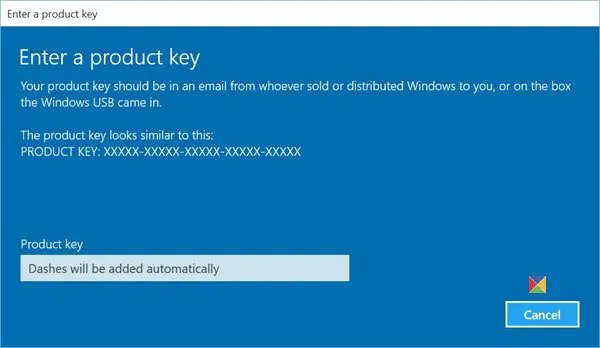
Upgrading from Windows 11 Home to Pro is a straightforward process. You will need a valid upgrade key, which can be purchased from the Microsoft Store or through a Microsoft Partner. Once you have the key, you can upgrade by going to Settings > Update & Security > Activation and selecting “Change product key.” Then, enter the upgrade key and follow the prompts to complete the upgrade.

Windows 11 Pro is the perfect edition for businesses and power users who require advanced security, tools, networking capabilities, and customization options. Upgrade from Windows 11 Home today to take your productivity and performance to the next level.

Conclusion Windows 11 Pro vs Home

Choosing between Windows 11 Home and Pro can be a daunting task, but understanding the differences between the two editions is crucial for making an informed decision.

If you are a casual user who mainly uses your computer for browsing the web, managing emails, and running basic software applications, then Windows 11 Home is likely the right choice for you. Its user-friendly interface, built-in Microsoft apps, and enhanced security features offer everything you need for everyday computing tasks.

On the other hand, if you are a business owner or power user who requires advanced security options, professional-grade tools, and networking capabilities, then upgrading to Windows 11 Pro is the way to go.

Upgrade with Ease

Upgrading from Windows 11 Home to Pro is a straightforward process that requires a valid upgrade key. You can purchase the upgrade key directly from Microsoft or from authorized retailers. Once you have the key, you can easily upgrade your system by following the on-screen instructions.

Overall, whether you choose Windows 11 Home or Pro, you can rest assured knowing that both editions offer reliable performance, enhanced security, and a range of useful features and functionalities.

We hope this article has been helpful in your decision-making process. Happy computing!

FAQ

What are the key differences between Windows 11 Home and Pro editions?

Windows 11 Home and Pro editions differ in terms of features and functionality. Windows 11 Pro offers advanced security options, professional tools, networking capabilities, and customization options that are tailored for businesses and power users. Windows 11 Home, on the other hand, provides a user-friendly interface, enhanced security measures, and built-in Microsoft apps, making it suitable for personal use and everyday tasks.

Can I upgrade from Windows 11 Home to Pro?

Yes, it is possible to upgrade from Windows 11 Home to Pro. However, an upgrade key is required to initiate the upgrade process. You can obtain the upgrade key through authorized channels, and once you have it, you can follow the provided instructions to upgrade from Windows 11 Home to Pro.

What are the benefits of Windows 11 Home?

Windows 11 Home offers several benefits, including a user-friendly interface that enhances the overall user experience. It also provides enhanced security measures to protect your data and privacy. Additionally, Windows 11 Home comes with built-in Microsoft apps, such as Microsoft Edge, Microsoft Store, and Microsoft Photos, allowing you to easily access and utilize these essential tools for productivity and entertainment.

What features make Windows 11 Pro a suitable choice for businesses and power users?

Windows 11 Pro offers a range of features specifically designed for businesses and power users. It provides advanced security options, including Windows Hello for biometric authentication and BitLocker for data encryption. Windows 11 Pro also offers professional-grade tools like Microsoft Teams, Windows Update for Business, and Azure Active Directory integration. Networking capabilities, such as domain join and remote desktop, are available in Windows 11 Pro, allowing for better collaboration and productivity in a professional setting.

 
  1. Choose a theme

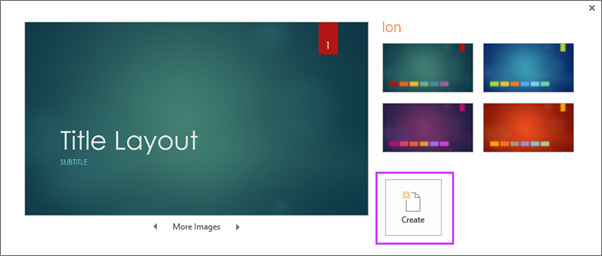
    When you open PowerPoint, you’ll see some built-in themes and templates. A theme is a slide design that contains matching colors, fonts, and special effects like shadows, reflections, and more.

    1. On the File tab of the Ribbon, select New, and then choose a theme.

      PowerPoint shows you a preview of the theme, with four color variations to choose from on the right side.

    2. Click Create, or pick a color variation and then click Create.

      Shows the Create New presentation from Theme dialog in PowerPoint

    Read more: Use or create themes in PowerPoint

    Insert a new slide

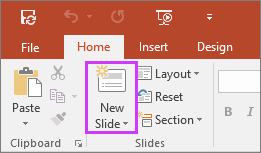
    • On the Home tab, click the bottom half of New Slide, and pick a slide layout.

      Shows New Slide button on Home tab of the ribbon in PowerPoint

    Read more: Add, rearrange, and delete slides.

    Save your presentation

    1. On the File tab, choose Save.

    2. Pick or browse to a folder.

    3. In the File name box, type a name for your presentation, and then choose Save.

    Note: If you frequently save files to a certain folder, you can ‘pin’ the path so that it is always available (as shown below).

    Save your PowerPoint presentation

    Tip: Save your work as you go. Press Ctrl+S often or save the file to OneDrive and let AutoSave take care of it for you. 

    Read more: Save your presentation file

    Add text

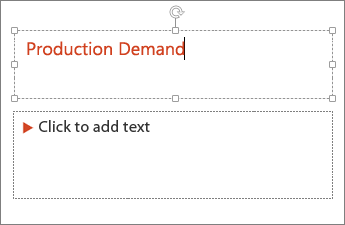
    Select a text placeholder, and begin typing.

    Shows adding text to a text field in PowerPoint

    Format your text

    1. Select the text.

    2. Under Drawing Tools, choose Format.

      Shows the Drawing Tools tab on the ribbon in PowerPoint

    3. Do one of the following:

      • To change the color of your text, choose Text Fill, and then choose a color.

      • To change the outline color of your text, choose Text Outline, and then choose a color.

      • To apply a shadow, reflection, glow, bevel, 3-D rotation, a transform, choose Text Effects, and then choose the effect you want.

    Read more:

    Add pictures

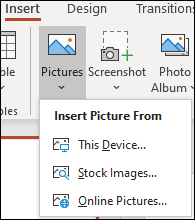
    On the Insert tab, select Pictures, then do one of the following:

    • To insert a picture that is saved on your local drive or an internal server, choose This Device, browse for the picture, and then choose Insert.

    • (For Microsoft 365 subscribers) To insert a picture from our library, choose Stock Images, browse for a picture, select it and choose Insert.

    • To insert a picture from the web, choose Online Pictures, and use the search box to find a picture. Choose a picture, and then click Insert.

      Insert image location in the ribbon.

    Add shapes

    You can add shapes to illustrate your slide. 

    1. On the Insert tab, select Shapes, and then select a shape from the menu that appears.

    2. In the slide area, click and drag to draw the shape.

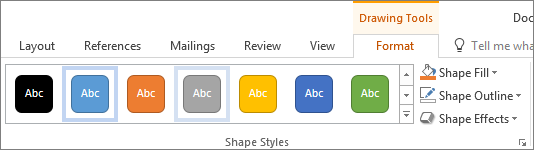
    3. Select the Format or Shape Format tab on the ribbon. Open the Shape Styles gallery to quickly add a color and style (including shading) to the selected shape.

      Shape Styles group

    Add speaker notes

    Slides are best when you don’t cram in too much information. You can put helpful facts and notes in the speaker notes, and refer to them as you present.

    1. To open the notes pane, at the bottom of the window, click Notes notes button in PowerPoint.

    2. Click inside the Notes pane below the slide, and begin typing your notes.

      Shows the speaker Notes pane in PowerPoint

    Read more:

    Give your presentation

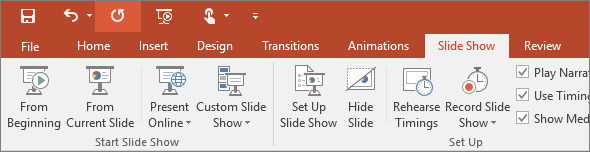
    On the Slide Show tab, do one of the following:

    Get out of Slide Show view

    To get out of Slide Show view at any time, on the keyboard, press Esc.

    Tips for creating an effective presentation

    Consider the following tips to keep your audience interested.

    Minimize the number of slides

    To maintain a clear message and to keep your audience attentive and interested, keep the number of slides in your presentation to a minimum.

    Choose an audience-friendly font size

    The audience must be able to read your slides from a distance. Generally speaking, a font size smaller than 30 might be too difficult for the audience to see.

    Keep your slide text simple

    You want your audience to listen to you present your information, instead of reading the screen. Use bullets or short sentences, and try to keep each item to one line.

    Some projectors crop slides at the edges, so that long sentences might be cropped.

    Use visuals to help express your message

    Pictures, charts, graphs, and SmartArt graphics provide visual cues for your audience to remember. Add meaningful art to complement the text and messaging on your slides.

    As with text, however, avoid including too many visual aids on your slide.

    Make labels for charts and graphs understandable

    Use only enough text to make label elements in a chart or graph comprehensible.

    Apply subtle, consistent slide backgrounds

    Choose an appealing, consistent template or theme that is not too eye-catching. You don’t want the background or design to detract from your message.

    However, you also want to provide a contrast between the background color and text color. The built-in themes in PowerPoint set the contrast between a light background with dark colored text or dark background with light colored text.

    For more information about how to use themes, see Apply a theme to add color and style to your presentation.

  1. What is the Difference Between a Retail and OEM?

    When shopping for products, you may come across the terms “retail” and “OEM.” Both offer a range of products, but what sets them apart? In this section, we will explore the key differences between retail and OEM products, and help you determine which option is right for you.

    Key Takeaways:

    • Retail products are sold directly to consumers through various channels, while OEM products are sold to manufacturers for use in their own products.
    • There are differences in packaging, branding, pricing, warranty and support, and market availability between retail and OEM products.
    • When choosing between retail and OEM products, consider factors such as intended use, budget, and personal preferences.

    Definition of Retail Products

    Retail products are goods that are sold to end consumers through various channels such as brick-and-mortar stores, online platforms, and marketplaces. These products come in diverse shapes and sizes, catering to the needs and preferences of a wide range of customers. Unlike wholesale or bulk products, retail items are usually sold in smaller quantities, making them accessible to individual buyers.

    One of the key characteristics of retail products is the branding and packaging that accompanies them. Retail products are often packaged and labeled with the brand name, logo, and other marketing materials intended to attract buyers. In addition, retail products are usually priced based on factors such as production costs, demand, and competition, with the aim of generating a profit for the manufacturer, distributor, and seller.

    “Retail products are designed and marketed to appeal to individual consumers and are often available in small quantities. They typically have distinctive branding and packaging, and their prices reflect the costs of manufacturing, distribution, and sales.”

    Examples of retail products include clothing, electronics, books, cosmetics, and food items. These products are widely available and can be purchased from a variety of sources, including department stores, specialty shops, e-commerce websites, and supermarkets.

    Advantages of Retail Products

    • Widely available and easily accessible to consumers
    • Offer a wide variety of choices and options
    • Provide convenience and flexibility for consumers
    • Often feature attractive packaging, branding, and marketing materials

    Retail products offer numerous advantages for consumers. They are available in a wide range of stores and online platforms, making them easily accessible to buyers. Retail products also provide a diverse selection of choices and options for consumers, allowing them to compare and contrast products before making a purchase decision.

    Another advantage of retail products is their convenience and flexibility. They can be purchased at any time and location, allowing consumers to shop on their own terms. Additionally, retail products often feature attractive packaging, branding, and marketing materials that can enhance the overall shopping experience for consumers.

    Definition of OEM Products

    OEM products are original equipment manufacturer items that are produced by a company for use in other companies’ products. These products are made to fit a specific function and are sold to other manufacturers or as part of a larger product. OEM products are not typically sold directly to the general public, but rather through a network of authorized distributors.

    One primary characteristic of OEM products is that they are produced in high volumes, making them less expensive to manufacture and purchase in bulk. As a result, they are often used as components in larger products, such as computers, automobiles, and medical equipment.

    OEM products have some distinct advantages over retail products. Since they are designed to be compatible with specific products, they offer greater reliability and performance. Additionally, OEM products often come with extended warranties and specialized customer support, as manufacturers want to ensure their products work well within the larger product they are used in.

    Examples of OEM Products

    Here are some examples of OEM products:

    Product TypeExample
    AutomotiveEngine components, interior parts, and electronics
    Computers and electronicsChips, hard drives, motherboards, and power supplies
    Medical equipmentImaging machinery, surgical tools, and monitoring equipment

    As you can see, OEM products are important components in many products we use every day.

    Packaging and Branding Differences

    When it comes to packaging and branding, retail and OEM products have significant differences. Retail products are typically sold in packaging that is designed to appeal to the consumer, with eye-catching designs and branding that emphasizes the product’s features and benefits.

    OEM products, on the other hand, are often packaged in plain and unbranded boxes. This is because the products are intended for use by original equipment manufacturers who will install them into their products. As such, OEM products are not designed for retail sale, so packaging and branding are not essential factors.

    Another key difference between retail and OEM products is the level of branding that is present on the product itself. Retail products often have a significant amount of branding, with logos and product names prominently displayed on the product itself. OEM products, on the other hand, typically have minimal branding, if any at all. This is because they are intended to be used as components in other products, rather than being sold directly to consumers.

    “Packaging is one of the most important factors when it comes to selling retail products. The packaging must be eye-catching and informative, with branding that emphasizes the product’s features and benefits. For OEM products, however, packaging and branding are not as important because these products are not intended for retail sale.”

    Price Variations

    One of the significant differences between retail and OEM products is the price. In general, OEM products are less expensive than their retail counterparts. The reason for this price difference is that OEM products are sold in bulk directly to manufacturers, while retail products are sold individually to end-users.

    When purchasing retail products, customers pay for the packaging, branding, and other marketing expenses. On the other hand, OEM products do not have these additional costs, making them more affordable. Additionally, OEM products may not come with all the accessories that come with a retail product, which can contribute to the price difference.

    ProductRetail PriceOEM PricePrice Difference
    Microsoft Windows 10$139.99$89.99$50.00
    Intel Core i7 Processor$329.99$299.99$30.00
    Apple iPhone 12 Pro Max$1,099.00$649.00$450.00

    The table above shows a comparison of prices between retail and OEM products across different categories. As you can see, the price difference can be substantial, with OEM products being significantly cheaper than retail products.

    It’s worth noting that while OEM products are cheaper, they may not come with the same level of warranty and customer support as retail products. As such, buyers should consider the trade-offs between price and support when choosing between retail and OEM products.

    Warranty and Support Differences Between Retail and OEM Products

    One of the key considerations when choosing between retail and OEM products is the warranty and support that comes with each type. OEM products typically come with limited warranties that cover only manufacturer defects. On the other hand, retail products often come with longer warranties and more comprehensive support options.

    When it comes to warranty coverage, retail products generally offer more protection for consumers. Retail warranties typically cover a wider range of issues, including accidental damage and normal wear and tear. This means that if something goes wrong with a retail product, the consumer is more likely to be able to get it fixed or replaced under warranty.

    In terms of support, retail products generally come with more robust customer service options. Retailers usually offer phone and email support, as well as in-store assistance for troubleshooting and repairs. OEM products, on the other hand, often have more limited support options, with customer service typically provided only through online resources like FAQs and user forums.

    Table: Warranty and Support Comparison

     Retail ProductsOEM Products
    Warranty CoverageComprehensive coverage, including accidental damage and normal wear and tear.Limited coverage for manufacturer defects only.
    Support OptionsPhone, email, and in-store assistance for troubleshooting and repairs.Limited support provided through online resources like FAQs and user forums.

    When deciding between retail and OEM products, it’s important to consider the warranty and support options available. While OEM products may be less expensive upfront, the limited warranty and support options may end up costing more in the long run if something goes wrong with the product.

    Market Availability

    One of the most significant differences between retail and OEM products is their market availability. Retail products are widely available to consumers through various channels such as brick and mortar stores, online marketplaces, and e-commerce sites. They are typically marketed towards the general public, and as such, have a more extensive consumer base.

    OEM products, on the other hand, have a more limited market. They are typically sold directly to manufacturers or distributors and are not widely available to the general public. This restricts access to OEM products and limits their availability to specific industries and applications.

    The limited availability of OEM products means that they may not be suitable for all consumers and applications. It is essential to consider whether the product’s availability aligns with your specific needs.

    Considerations for Choosing Retail or OEM

    Deciding whether to purchase a retail or OEM product is an important decision that should be made carefully. There are several factors to consider when making this choice.

    Intended Use

    One of the most important considerations when choosing between retail and OEM products is intended use. Retail products are designed for general use and are often more user-friendly with additional features. On the other hand, OEM products are specifically designed for use in a particular application or system and may not have the same level of usability or additional features.

    Budget

    Another important consideration is budget. Retail products are generally more expensive than OEM products due to factors such as additional features, packaging, and branding. OEM products, in contrast, are sold without retail packaging and branding, resulting in a lower price point.

    Personal Preferences

    Personal preferences should also be considered when choosing between retail and OEM products. Some people prefer the branding and packaging that comes with retail products, while others don’t mind the plain appearance of OEM products. It’s important to consider which type of product aligns with your personal preferences.

    Availability

    The availability of retail and OEM products can also be a consideration. Retail products are widely available in brick-and-mortar stores and online, while OEM products are generally only available online or through specific vendors. If immediate availability is important, a retail product may be the best choice.

    Compatibility

    Compatibility with existing hardware and software may also be a factor to consider. Retail products are designed to be compatible with a wide range of systems and devices, while OEM products may only be compatible with specific systems or devices. It’s important to confirm compatibility before making a purchase.

    Support and Warranty

    The level of support and warranty offered with a product should be considered when making a purchasing decision. Retail products often come with a full warranty and support options such as customer service and technical support. OEM products, in contrast, may only have a limited warranty and minimal support options.

    When choosing between retail and OEM products, it’s important to carefully consider the intended use, budget, personal preferences, availability, compatibility, and support and warranty options. By taking these factors into account, you can make an informed decision that best meets your needs.

    Case Studies and Examples

    To better understand the differences between retail and OEM products, let’s take a closer look at some case studies and examples.

    Case Study 1: Retail vs OEM Computers

    In this case study, we will compare a retail computer with an OEM computer. The retail computer is a well-known brand that is sold in stores and comes with pre-installed software and technical support. The OEM computer, on the other hand, is a “white box” computer that is built by a third-party manufacturer and does not come with pre-installed software or technical support.

     Retail ComputerOEM Computer
    Price$999$799
    SoftwareComes with pre-installed softwareNo pre-installed software
    Technical SupportIncludes technical supportNo technical support included
    WarrantyOne-year warranty includedOne-year warranty included

    As we can see from this case study, the retail computer comes with additional features and benefits, such as pre-installed software and technical support, but at a higher cost. The OEM computer is more cost-effective but lacks the additional features and support provided by the retail computer.

    Example: Retail vs OEM Automotive Parts

    Let’s compare a retail automotive part with an OEM automotive part. The retail part is manufactured and sold by an aftermarket company and is designed to fit a specific make and model of car. The OEM part, on the other hand, is manufactured by the original equipment manufacturer and is designed to the exact specifications of the car.

    • The retail part may be cheaper than the OEM part
    • The OEM part is designed to fit and function perfectly with the car
    • The retail part may not have the same level of quality control as the OEM part
    • The OEM part may come with a longer warranty than the retail part

    This example illustrates the trade-offs between retail and OEM parts. While the retail part may be cheaper, it may not be of the same quality as the OEM part, which is specifically designed for the car and may come with a longer warranty.

    Conclusion

    After exploring the differences between retail and OEM products, it is evident that each has its own unique features, benefits, and considerations.

    One of the key differences between retail and OEM products is in their packaging and branding, with retail products often having more elaborate designs and branding than OEM products. Additionally, pricing can vary significantly between the two types, with OEM products generally being less expensive than retail products.

    Another important factor to consider when choosing between retail and OEM products is the level of warranty and support offered. Retail products typically come with more extensive warranty coverage and customer support, while OEM products may have limited or no warranty coverage and support.

    When deciding between retail and OEM products, it is essential to consider factors such as intended use, budget, and personal preferences. For example, if you are looking for a product with extensive warranty coverage and customer support, retail may be the better option. On the other hand, if you are looking for a more cost-effective option, OEM may be the way to go.

    Overall, the decision between retail and OEM products ultimately comes down to individual preferences and needs. By taking into account the factors discussed in this article, you can make an informed decision that meets your specific requirements.

    FAQ

    What is the difference between a retail and OEM?

    Retail products are sold directly to consumers through various channels, such as brick-and-mortar stores or online retailers. They often come with packaging, branding, and an extensive warranty. OEM products, on the other hand, are sold to manufacturers or businesses and are typically used for incorporation into other products without packaging or branding. They may have limited or no warranty.

    What are retail products?

    Retail products are those that are sold directly to consumers. They are packaged and branded, and often come with warranties. These products are typically available through various retail channels, such as stores or e-commerce platforms.

    What are OEM products?

    OEM products, short for Original Equipment Manufacturer, are products that are manufactured by one company and then sold to another company to be incorporated into their own products. These products are often not packaged or branded, and they might have limited or no warranty.

    What are the packaging and branding differences between retail and OEM products?

    Retail products usually have eye-catching packaging and branding designed to attract consumers. OEM products, on the other hand, are typically not packaged or branded as they are intended to be incorporated into other products. Packaging and branding are important for marketing and shelf appeal for retail products.

    Why do retail and OEM products have price variations?

    Retail products often have higher prices compared to OEM products due to factors such as packaging, branding, and marketing expenses. OEM products, being sold to other manufacturers, can be sold at a lower price as they do not require these additional costs.

    What are the warranty and support differences between retail and OEM products?

    Retail products generally come with warranties and customer support to ensure customer satisfaction. OEM products may have limited or no warranty as they are typically sold to manufacturers who incorporate them into their own products. The level of customer support may also vary for OEM products.

    How do market availability differ for retail and OEM products?

    Retail products have broader market availability and can be found in various retail channels, both physical and online. OEM products, on the other hand, are primarily available to manufacturers or businesses for incorporation into their own products.

    What considerations should be taken when choosing between retail and OEM products?

    When deciding between retail and OEM products, factors such as intended use, budget, and personal preferences should be considered. Retail products are suitable for individual consumers looking for branded, packaged products with warranties. OEM products are more suitable for manufacturers or businesses needing components for their own products at a potentially lower cost.

    Can you provide case studies and examples of the differences between retail and OEM products?

    Yes, here are a few examples: 1) A consumer looking to purchase a laptop can choose between a retail laptop, which comes with packaging, branding, and customer support, or an OEM laptop component to be used in building a custom laptop. 2) A car manufacturer may purchase OEM parts from various suppliers to incorporate into their vehicles, while consumers can purchase retail car parts for maintenance or customization.

    What is the conclusion on the difference between retail and OEM products?

    In conclusion, retail products are sold directly to consumers with packaging, branding, and warranties, while OEM products are sold to manufacturers for incorporation into their own products without packaging or branding. Factors such as cost, warranty, and accessibility should be considered when deciding between the two.

    1. Discover the Best Antivirus for Windows 11 Today


      As cybercriminals become increasingly sophisticated, protecting your Windows 11 operating system has become more crucial than ever. One of the most effective ways to ensure your system remains secure is by installing reliable antivirus software.

      Fortunately, there are several outstanding antivirus options available today that can help keep your system secure. In this article, we’ll explore the best antivirus software for Windows 11 to assist you in making an informed decision and safeguard your system from threats.

      Key Takeaways

      • Choosing the right antivirus software is an essential step in protecting your Windows 11 operating system from potential threats.
      • Factors such as real-time protection, malware detection rates, system performance impact, and pricing should all be considered when selecting antivirus software for your system.
      • Brand A, Brand B, and Brand C are three notable antivirus software options worth considering for Windows 11.
      • Maximizing your antivirus software’s protection can be achieved through following best practices for cybersecurity.
      • Customer reviews and ratings of antivirus software can provide valuable insights into the effectiveness of each option.

      Why Do You Need Antivirus Software for Windows 11?

      If you’re using Windows 11, having antivirus software installed is crucial for protecting your system against potential threats. Antivirus software works by scanning your system for viruses, malware, and other malicious software that can harm your system and compromise your data.

      With the rise of cybercrime and hacking, it’s more important than ever to prioritize your system’s security. Without antivirus protection, your system is vulnerable to a variety of threats, including:

      • Viruses: These are programs that can replicate themselves and spread to other systems. They can damage your data and system files.
      • Spyware: This type of software is designed to collect your personal information without your knowledge or consent.
      • Ransomware: This software is used to hold your data hostage until you pay a ransom to the hacker.
      • Adware: This software shows unwanted ads on your system.

      Without antivirus software, your system can become infected with these types of threats, resulting in slow performance, lost data, and even identity theft. Installing antivirus software is an essential step in ensuring your system’s security and protecting yourself from potential risks online.

      Top 5 best antivirus for Windows 11

      Factors to Consider When Choosing an Antivirus for Windows 11

      When it comes to selecting the best antivirus software for your Windows 11 system, there are several factors to consider. Here are some of the most important:

      Real-time protection

      Real-time protection is a crucial feature that enables your antivirus software to detect and block malware before it can infect your system. Look for antivirus software that offers continuous real-time protection to keep your computer safe from evolving threats.

      Malware detection rates

      The effectiveness of antivirus software largely depends on its ability to detect and remove malware. Look for software that has a high malware detection rate and can quickly identify and remove any potential threats.

      System performance impact

      Antivirus software can sometimes have a negative impact on your system performance, such as slowing down your computer or limiting available resources. Look for software that has a minimal impact on your system’s performance and won’t disrupt your daily work.

      Additional features

      Depending on your needs, additional features such as a firewall, VPN, or parental controls can be important when choosing antivirus software. Consider the features that are most relevant to you and choose software that meets your specific requirements.

      User interface and ease of use

      Antivirus software can have complex user interfaces that may be challenging for some users to navigate. Look for software that has a user-friendly interface and is easy to use and understand, even for those without extensive technical knowledge.

      Pricing and subscription plans

      Cost is an important factor to consider when choosing antivirus software. Look for software that fits within your budget and offers pricing and subscription plans that are transparent and easy to understand.

      Top Antivirus Software for Windows 11: Brand A

      Brand A is one of the most popular antivirus software for Windows 11 due to its exceptional features and high-security standards. This software provides a solid layer of protection against various threats that can harm your system and compromise sensitive information. Let’s take a closer look at the features that make Brand A stand out in the crowded market of antivirus software for Windows 11.

      Features

      Brand A offers real-time protection against viruses, spyware, ransomware, and other malware threats that can harm your system. It has a robust firewall that blocks unauthorized access and shields your network from potential intruders. Brand A also offers email protection to prevent phishing attempts from reaching your inbox.

      One of the unique features of Brand A is the anti-phishing module that can identify fraudulent websites and protect you from identity theft. Additionally, it has advanced scanning options that can detect and remove even the most sophisticated malware from your system.

      Pricing

      Subscription PlanPriceDevices Covered
      Basic$14.99/year1 device
      Premium$29.99/year3 devices
      Ultimate$39.99/year5 devices

      Brand A’s pricing plans are affordable and provide value for money compared to other antivirus software for Windows 11. The basic plan covers a single device, while the premium and ultimate plans can protect up to three and five devices, respectively.

      Effectiveness

      Brand A has a high detection rate and can effectively detect and remove malware from your system. It has a low impact on system performance, ensuring that your system remains fast and responsive even during scans or updates.

      Brand A’s customer service is also exceptional, providing reliable support to its customers through various channels, including email and live chat.

      “Brand A’s customer service is exceptional, providing reliable support to its customers through various channels.”

      If you’re looking for a reliable antivirus software for Windows 11, Brand A is an excellent choice due to its robust features, affordability, and effectiveness.

      Top Antivirus Software for Windows 11: Brand B

      Brand B is a reliable antivirus software option for Windows 11 users seeking comprehensive protection against digital threats. The software is equipped with a range of features and tools designed to keep your system secure from malware, viruses, and other harmful attacks.

      Features

      Some of the standout features of Brand B antivirus software for Windows 11 include:

      • Real-time malware protection
      • Advanced threat detection and removal
      • Anti-phishing and anti-spam filters
      • System optimization tools
      • Firewall protection

      These features work together to provide a comprehensive defense against a range of digital threats, ensuring your system remains secure and protected at all times.

      Pricing and Subscription Plans

      Brand B offers a range of pricing and subscription plans to suit different budgets and needs. Users can choose from options such as:

      PlanPricing
      Basic$X per year
      Pro$Y per year
      Premium$Z per year

      The plans vary in terms of the level of protection and additional features included, allowing users to choose the plan that best meets their specific needs.

      Customer Reviews and Ratings

      Brand B antivirus software for Windows 11 has received positive reviews and ratings from customers, with many praising its ease of use and reliable protection. Users have also noted the software’s fast scanning speeds and low impact on system performance.

      “I’ve been using Brand B for a year now and it has consistently provided reliable protection against viruses and malware. I highly recommend it for anyone seeking effective antivirus software for their Windows 11 system.” – John D.

      Overall, Brand B is a solid choice for anyone looking for robust antivirus software for Windows 11. Its advanced features, flexible pricing plans, and positive customer reviews make it a top contender in the antivirus software market.

      Top Antivirus Software for Windows 11: Brand C

      Brand C is a powerful antivirus software that offers advanced security features to protect your Windows 11 system from malware and cyber threats. This software is highly effective in detecting and removing viruses, spyware, and other malicious software.

      One of the key features that make Brand C stand out is its real-time protection, which constantly monitors your system to detect and prevent malware attacks. It also offers anti-phishing and anti-ransomware protection to safeguard your personal data and files.

      Brand C is designed to have a minimal impact on system performance, ensuring that your device runs smoothly while the software runs in the background. It also has a user-friendly interface that makes it easy to navigate and customize, allowing you to tailor the settings to meet your specific needs.

      Features

      Some of the notable features of Brand C antivirus software include:

      • Real-time protection against viruses, spyware, and malware
      • Anti-phishing and anti-ransomware protection
      • Advanced firewall protection to prevent unauthorized access
      • Parental controls to restrict access to inappropriate content
      • Secure browsing to protect against online threats

      Performance

      Brand C has a high malware detection rate and performs well in independent antivirus testing. It is also known for having a low impact on system performance, allowing your device to run smoothly while the software runs in the background.

      Pricing

      Brand C offers flexible pricing plans to suit different needs and budgets. Their plans range from basic, free antivirus software to premium packages that provide advanced security features. Prices vary depending on the package and the duration of your subscription.

      User Reviews

      “Brand C is one of the best antivirus software I’ve tried. It’s so easy to use, and it doesn’t slow down my computer like other antivirus software I’ve used in the past. It also offers great protection against malware and cyber threats.”

      – John D.

      “I’ve been using Brand C for over a year now, and I’ve never had any issues with malware or viruses. It’s always running in the background, keeping my computer safe and secure. I highly recommend it!”

      – Sarah K.

      Comparing Features and Performance of Antivirus Software for Windows 11

      When selecting the best antivirus software for Windows 11, it’s crucial to compare the features and performance of each option to ensure maximum protection for your system. Here’s a breakdown of the top antivirus software for Windows 11 and how they measure up:

       Real-Time ProtectionMalware Detection RateSystem Performance ImpactAdditional Features
      Brand AExcellentHighMinimalFirewall, Email Protection, Parental Controls
      Brand BGreatHighLowVPN, Password Manager, Online Banking Protection
      Brand CGoodMediumMediumSafe Browsing, Exploit Prevention, Ransomware Protection

      As shown in the comparison table, each antivirus software has its strengths and unique set of features. Brand A provides excellent real-time protection and comprehensive features such as firewall and parental controls. Brand B offers additional features like VPN and password manager, while still delivering great real-time protection and low system performance impact. Brand C may have a lower malware detection rate, but it has decent real-time protection and comes with useful features like exploit prevention and ransomware protection.

      Ultimately, the best antivirus software for Windows 11 depends on your specific needs and preferences. Consider the factors we outlined previously, such as real-time protection, malware detection rates, and system performance impact to make an informed decision.

      Tips for Maximizing Antivirus Protection on Windows 11

      Installing antivirus software is a crucial first step in protecting your Windows 11 system from various security threats. However, there are additional measures you can take to enhance your overall cybersecurity and maximize your antivirus protection.

      1. Keep Your Antivirus Software Up to Date

      Regularly updating your antivirus software ensures it has the latest virus definitions and protection mechanisms. Enable automatic updates to ensure you are always protected against emerging threats.

      2. Enable Real-Time Protection

      Real-time protection continuously scans your system for potential threats and prevents them from executing. Enable this feature to ensure your system is always protected, even if you forget to manually scan for viruses.

      3. Be Cautious When Browsing the Web

      The internet can be a breeding ground for malware, phishing scams, and other security threats. Be vigilant when clicking on links, downloading files, and entering personal information on websites. Avoid suspicious websites and downloads, and only use trusted sources.

      4. Use a Firewall

      A firewall is an essential tool for preventing unauthorized access to your system. Make sure to enable the built-in Windows 11 firewall or install a third-party firewall to protect your system from external threats.

      5. Limit User Access

      Limiting user access to your system can prevent unauthorized changes and virus installations. Create separate accounts for each user with limited privileges. Avoid using the default administrator account for daily use.

      6. Use Complex Passwords

      Strong and complex passwords are essential for protecting your system from hacking attempts. Use complex combinations of letters, numbers, and special characters to create secure passwords. Enable multi-factor authentication wherever possible.

      7. Backup Your Data Regularly

      Backing up your data regularly ensures you have a copy of your important files in case of a security breach or system failure. Use cloud storage or an external hard drive to store your backups and ensure they are kept up to date.

      8. Educate Yourself and Stay Informed

      Stay up to date with the latest cybersecurity threats and trends to ensure you are aware of potential risks and how to avoid them. Subscribe to security newsletters and follow reputable cybersecurity experts on social media.

      Antivirus Software for Windows 11: Pricing and Subscription Plans

      When it comes to selecting the best antivirus software for Windows 11, pricing and subscription plans are crucial factors to consider. The cost of antivirus software can vary significantly depending on the provider and the level of protection offered.

      Free Antivirus Software Options

      While most antivirus software options require a paid subscription, some providers offer free versions of their software. These free options may be suitable for basic protection needs, but they may lack advanced features like real-time scanning or firewall protection.

      Common free antivirus software options for Windows 11 include:

      • Windows Defender (built-in with Windows 11)
      • Avast Free Antivirus
      • AVG AntiVirus Free
      • Bitdefender Antivirus Free Edition

      Paid Antivirus Software Options

      Paid antivirus software typically offers more advanced protection features and can better defend against a wider range of threats. Most paid antivirus software options offer multiple subscription plans to fit different budgets and needs.

      Here are some of the most popular paid antivirus software options for Windows 11:

      Antivirus SoftwarePricingSubscription Plans
      Norton AntiVirus Plus$39.99 – $59.99 per yearSingle Device, Multi-Device, Family
      McAfee Total Protection$79.99 – $119.99 per yearIndividual, Multi-Device, Family
      Kaspersky Anti-Virus$59.99 – $119.99 per yearSingle Device, Multi-Device, Family
      Trend Micro Antivirus+ Security$29.95 – $79.95 per year1-PC, 3-PC, 5-PC

      It’s worth noting that pricing and subscription plans can change over time, so it’s important to check with each provider for the most up-to-date information.

      Ultimately, the best antivirus software for Windows 11 is the one that offers the features and level of protection that you need within your budget. Consider the pricing and subscription plans carefully to ensure that you’re getting the most value for your money.

      Customer Reviews and Ratings of Antivirus Software for Windows 11

      When choosing the best antivirus software for your Windows 11 system, it’s essential to consider feedback and experiences of other customers who have used the products. Here’s a summary of the most common customer reviews and ratings of antivirus software for Windows 11.

      Brand A Antivirus

      Many customers are pleased with the overall effectiveness of Brand A antivirus software for Windows 11. They appreciate the real-time protection, malware detection rates, and system performance impact. However, some comment on the occasional pop-up ads and the high cost of the subscription plans.

      Brand B Antivirus

      Customers praise Brand B antivirus software for its user-friendly interface and ease of use. They appreciate the fast scanning speed and the affordable pricing plans. However, some mention that the detection rates could be improved.

      Brand C Antivirus

      Reviews of Brand C antivirus software for Windows 11 are generally positive, with customers highlighting the excellent malware detection rates and fast scanning speed. They appreciate the affordable pricing plans and the clear interface. However, some customers report performance issues, such as system slowdowns.

      Comparative Rating

      Antivirus SoftwareOverall Customer Rating (Out of 5)
      Brand A4.2
      Brand B3.8
      Brand C4.0

      Keep these customer reviews and ratings in mind when selecting the best antivirus software for your Windows 11 system. Remember that customer feedback is essential, but always consider your specific needs and requirements before making your final decision.

      Addressing Common Concerns and FAQs about Antivirus Software for Windows 11

      As with any software, some users may have concerns or questions about selecting and using antivirus software for Windows 11. Below are some of the most common concerns and frequently asked questions:

      Is antivirus software necessary for Windows 11?

      While Windows 11 does come with built-in security features, it’s still recommended to use antivirus software for added protection against malware and other cyber threats.

      Will antivirus software slow down my Windows 11 system?

      While some antivirus software may have an impact on system performance, many modern antivirus programs are designed to be lightweight and have minimal effect on your computer’s speed. Before selecting an antivirus program, consider researching its impact on system performance.

      How often should I update my antivirus software?

      It’s important to regularly update your antivirus software to ensure it has the latest virus definitions and can effectively protect against new threats. Many antivirus programs offer automatic updates, but it’s also a good idea to check for updates manually on a regular basis.

      What should I do if my antivirus software detects a threat?

      If your antivirus software detects a threat, it’s important to immediately follow the program’s instructions for removing or quarantining the threat. Additionally, consider running a full system scan to ensure there are no other potential threats on your computer.

      Can I use multiple antivirus programs on my Windows 11 system?

      No, it’s not recommended to use multiple antivirus programs on the same system as they can conflict with each other and potentially cause issues with system performance. It’s best to select one reliable antivirus program and stick with it.

      Do I need to pay for antivirus software?

      While there are free antivirus options available, many paid antivirus programs offer additional features and better protection against threats. Consider your specific needs and research the features of different antivirus programs before making a decision.

      What if I have an older version of Windows?

      If you are still using an older version of Windows, it’s still important to have antivirus software installed for protection against cyber threats. However, some newer antivirus programs may not be compatible with older versions of Windows, so be sure to verify compatibility before making a purchase.

      By addressing these common concerns and answering frequently asked questions, we hope to provide you with the information you need to make an informed decision when selecting antivirus software for your Windows 11 system.

      Conclusion

      Choosing the best antivirus software for Windows 11 is a crucial step in ensuring your system stays secure and protected from potential cyber threats. We hope our comprehensive guide has provided you with valuable insights into the top antivirus options, key factors to consider, and tips for maximizing your protection.

      When selecting an antivirus solution, it’s essential to prioritize features such as real-time protection, malware detection rates, system performance impact, and ease of use. By doing so, you can rest assured that you’re choosing the right software to secure your system.

      Remember to also take advantage of additional steps you can take to enhance your overall cybersecurity, such as regularly updating your operating system, avoiding suspicious websites and downloads, and enabling two-factor authentication wherever possible.

      Finally, be sure to read customer reviews and ratings to gain insights into real user experiences with antivirus software. This can provide additional information to help you make an informed decision about the ideal antivirus solution for your needs.

      Investing in the best antivirus software for Windows 11 is an investment in your system’s security. So take the time to select the right option and stay safe online today.

      FAQ

      Why do I need antivirus software for Windows 11?

      Antivirus software is crucial for protecting your Windows 11 operating system from potential risks and threats. It helps detect and remove malware, viruses, and other malicious software, ensuring the security and integrity of your system.

      What factors should I consider when choosing an antivirus for Windows 11?

      When selecting an antivirus for Windows 11, consider factors such as real-time protection, malware detection rates, system performance impact, user interface, customer support, and additional features like firewall protection and phishing detection.

      What is Brand A antivirus and is it suitable for Windows 11?

      Brand A is a top antivirus software option for Windows 11. It offers comprehensive security features, reliable malware detection, and minimal system performance impact. It is compatible with Windows 11 and provides a user-friendly experience.

      Can you tell me about Brand B antivirus and its suitability for Windows 11?

      Brand B is another leading antivirus option for Windows 11. It offers advanced security features, high malware detection rates, and excellent customer reviews. It is compatible with Windows 11 and provides effective protection against various threats.

      Is Brand C antivirus a good choice for Windows 11?

      Brand C is a notable antivirus software for Windows 11. It offers robust security features, reliable malware detection, and positive customer satisfaction. It is compatible with Windows 11 and provides comprehensive protection for your system.

      How do different antivirus software options for Windows 11 compare in terms of features and performance?

      In our comparison, we analyze the features, performance, and overall effectiveness of various antivirus software options for Windows 11. This analysis will help you make an informed decision based on your specific requirements and priorities.

      Are there any tips for maximizing antivirus protection on Windows 11?

      Absolutely! Besides selecting the right antivirus software, you can maximize protection on Windows 11 by keeping your operating system and software up to date, practicing safe browsing habits, using strong and unique passwords, and being cautious with email attachments and downloads.

      How much does antivirus software for Windows 11 cost and what are the different subscription plans available?

      Antivirus software for Windows 11 offers various pricing structures and subscription plans. The costs may vary based on the features and level of protection offered. It’s essential to explore the different options available and choose the one that best fits your budget and needs.

      Can I read customer reviews and ratings of antivirus software for Windows 11?

      Yes, you can gain valuable insights into real customer experiences by exploring user reviews and ratings of antivirus software for Windows 11. This can help you understand the pros and cons of each antivirus solution and make an informed decision.

      What are some common concerns and frequently asked questions about antivirus software for Windows 11?

      We address common concerns and FAQs related to antivirus software for Windows 11. You’ll find answers to questions regarding compatibility, system requirements, installation process, scanning options, and more.
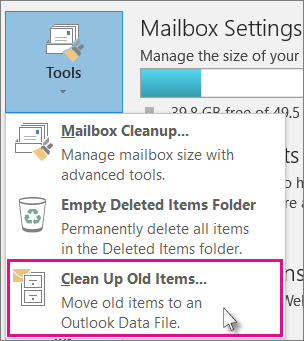
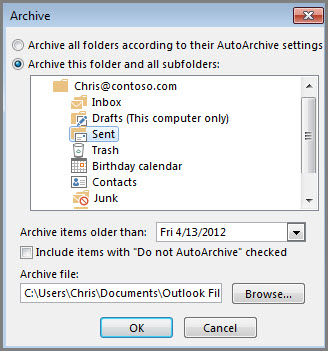
       
      1. By default, Outlook uses AutoArchive to archive items at a regular interval. To learn more, see Archive older items automatically.

        You can also archive items manually whenever you want. That way, you can control which items to archive, where to store them, and how old an item needs to be before it can be archived.

        1. In Outlook: Click File > Info > Tools > Clean up old items

          • Clean up old items

          Tip: Archive and AutoArchive might not be available if your mail profile connects to an Exchange Server. It’s also possible that your organization has a mail retention policy that overrides AutoArchive. Check with your system administrator for more information.

        2. Click the Archive this folder and all subfolders option, and choose the folder you want to archive.

        3. Under Archive items older than, enter a date.

          Archive dialog box

        4. You can create multiple .pst files if you want to archive some folders using different settings. For example, you may want to keep items in your Sent folder longer than items in your Inbox folder.

        5. Check the Include items with “Do not AutoArchive” checked box to archive individual items that are excluded from automatic archiving. This option doesn’t remove that exclusion from these items, but instead ignores the Do not AutoArchive setting for this archive only.

        6. Click OK.

        Turn off AutoArchive

        To archive only when you want, turn off AutoArchive.

        1. Click File > Options > Advanced.

        2. Under AutoArchive, click AutoArchive Settings.

        3. Uncheck the Run AutoArchive every n days box.

      1. Easy Guide: How to Update Drivers for Windows 11

        If you’re a Windows 11 user, it’s important to keep your system up to date with the latest drivers. Whether you need to download new drivers or update existing ones, having the correct and latest drivers installed guarantees that your hardware and software function smoothly and efficiently. In this article, we will provide a step-by-step guide on how to update drivers for Windows 11, including both manual and automated methods.

        Key Takeaways:

        • Updating drivers on Windows 11 ensures optimal performance and compatibility with the latest hardware.
        • You can update drivers for Windows 11 manually or by using driver update software.
        • Windows 11 provides built-in tools for checking and installing driver updates.
        • Follow best practices for updating drivers and troubleshooting common issues to ensure a successful update process.
        • Regularly updating drivers is crucial for improving system performance and stability.

        Why Update Drivers for Windows 11?

        If you’re wondering why updating drivers on Windows 11 is necessary, here are some reasons:

        • Improved Performance: Newer drivers often come with bug fixes and performance enhancements that can make your hardware run smoother and faster.
        • Compatibility: Newer hardware components may require the latest drivers to function correctly. Without the correct drivers, your system may experience compatibility issues with new hardware.
        • Security: Outdated drivers can leave your system vulnerable to security threats. Keeping your drivers up to date ensures that any vulnerabilities are patched, and your system is secure.

        With these benefits in mind, it’s clear that keeping your PC drivers up to date is crucial for optimal performance and stability.

        Manual Driver Updates for Windows 11

        If you prefer a hands-on approach to updating your drivers, you can manually search for and install the latest versions. Here’s a step-by-step guide to help you through the process:

        1. Identify outdated drivers: First, you need to determine which drivers need updating. You can do this by accessing the Device Manager, which is found by right-clicking the Start button. Look for any devices with a yellow exclamation mark, as this indicates a driver issue. Alternatively, you can download a driver scanning tool to identify all outdated drivers at once.
        2. Find the latest versions: Once you know which drivers need updating, you can search for the latest versions on the manufacturer’s website. Be sure to select the correct driver for your system and hardware. You can also use third-party websites, but be cautious as they may not provide reliable or safe drivers.
        3. Install the drivers: After downloading the latest drivers, you can install them by double-clicking the file and following the installation wizard. Alternatively, you can use the Device Manager to install the driver manually.

        It’s important to note that manually updating drivers can be time-consuming, and there’s always a risk of installing the wrong driver or causing system compatibility issues. However, if you’re confident in your technical skills and want more control over the process, manual driver updates may be the best option for you.

        Using Driver Update Software for Windows 11

        If you’re looking for a more automated approach to update drivers on Windows 11, using driver update software can streamline the process and save you time. These tools scan your system, identify outdated drivers, and download and install the latest versions with just a few clicks.

        Driver update software can be especially helpful if you’re not confident in your ability to manually update drivers. It can also be useful if you have a large number of drivers that need updating, or if you simply don’t have the time to go through the manual process.

        The Benefits of Using Driver Update Software for Windows 11

        • Time-saving: Driver update software automates the process, saving you time and effort.
        • Simplifies the process: These tools make it easy even for non-technical users to update drivers.
        • One-click updates: With these tools, you can update all your drivers with just a few clicks, avoiding the need to update each one individually.
        • Keeps your system updated: Driver update software ensures that you have the latest drivers for enhanced system stability and performance.

        Best Driver Update Software for Windows 11

        There are many driver update software programs available for Windows 11, but not all of them are reliable or effective. Here are some of the best driver update tools that you can use to keep your system up-to-date:

        SoftwareFeatures
        Driver BoosterAutomatically scans for outdated driversOne-click updatesLarge database of driversDriver rollback feature
        Driver EasyAutomatically scans for outdated driversOne-click updatesBackup and restore featureDriver rollback feature
        IObit Driver BoosterAutomatically scans for outdated driversOne-click updatesLarge database of driversProvides game-boosting drivers

        Note: When using driver update software, it’s important to ensure that you download it from a reliable source and that you keep the software itself up-to-date to avoid security vulnerabilities.

        Checking for Windows 11 Driver Updates

        Windows 11 provides users with a convenient built-in tool for checking and installing the latest drivers for hardware components. Here’s how to use it:

        1. Click on the Start menu and select Settings.
        2. Select Windows Update from the left-hand menu.
        3. Click on the Check for updates button.
        4. Once the scan is complete, any available driver updates will be displayed under Optional updates.
        5. Select the driver updates you want to install and click on Download and install.

        It’s important to note that this method may not always provide the most up-to-date drivers for your hardware. If you encounter any issues or want to ensure you have the latest drivers available, it may be best to use one of the methods outlined in the previous sections, such as manual updates or driver update software.

        Download Drivers Windows 11

        If you prefer to manually download drivers for Windows 11, you can visit the manufacturer’s website for each component and locate the appropriate driver for your specific operating system. Here are the steps:

        1. Determine the manufacturer and model of the hardware component for which you need a driver.
        2. Visit the manufacturer’s website and navigate to the Support or Downloads section.
        3. Locate the driver for your specific hardware component and download it to your computer.
        4. Follow the manufacturer’s instructions for installing the driver.

        Remember to always download drivers from reputable sources to avoid potential security risks.Tip: Keep in mind that downloading drivers individually for each component can be time-consuming, especially if you need to update multiple drivers. Consider using a driver update tool to streamline the process.

        Best Practices for Updating Drivers on Windows 11

        Updating drivers on Windows 11 is a critical task that should be done regularly to ensure optimal system performance. Here are some best practices to follow when updating drivers on your PC.

        Create a Restore Point

        Before you start updating drivers, it’s always a good idea to create a restore point. This allows you to revert your system to its previous state if something goes wrong during the update process. To create a restore point, go to the Start menu, type “Create a restore point,” and select it from the search results. Then click on “Create” and follow the prompts.

        Verify the Driver Version and Compatibility

        Before updating a driver, make sure you know the version you want to update to and that it’s compatible with your hardware and Windows 11. You can usually find this information on the manufacturer’s website or within the driver’s properties.

        Download Drivers Only from Trusted Sources

        Be cautious when downloading drivers from websites other than the manufacturer’s website. They may contain malware or be outdated, causing more harm than good.

        Update One Driver at a Time

        Updating multiple drivers simultaneously can sometimes lead to conflicts. Instead, update one driver at a time and restart your system if necessary.

        Don’t Update Drivers Unless Necessary

        If your system is working fine, there may not be a need to update certain drivers. Only update drivers when new features or bug fixes are released, or if a particular driver is causing issues on your system.

        Keep an Eye on Driver Updates

        Regularly check for driver updates and install them as soon as they become available. You can do this manually or by using driver update software. Keeping your drivers up to date will ensure your system runs smoothly and efficiently.

        • SEO relevant keywords: update drivers windows 11PC drivers update

        Troubleshooting Driver Update Problems on Windows 11

        Updating drivers on Windows 11 is a crucial task for optimizing system performance and stability. However, sometimes issues can arise during the update process. In this section, we’ll discuss common problems and provide troubleshooting steps to resolve them.

        Issue 1: Compatibility Issues

        One common issue that can arise when updating drivers on Windows 11 is compatibility issues. If the updated driver is not compatible with your system, it can cause problems like crashes and system freezes. To avoid this issue, make sure to check the system requirements before updating a driver.

        Issue 2: Installation Errors

        Another issue that can occur during the driver update process is installation errors. This can happen if there are corrupted files or conflicts with existing drivers. To fix this issue, try deleting the old driver and reinstalling the updated one. If the issue persists, trying using a driver update software, which can automatically troubleshoot installation errors.

        Issue 3: Blue Screen of Death (BSOD)

        If you encounter a Blue Screen of Death (BSOD) after updating a driver, it could be due to a compatibility issue or instability in the updated driver. To fix this issue, you can try rolling back to the previous driver or performing a system restore. Additionally, ensure that you are downloading the driver from a legitimate source to avoid malware or viruses.

        Issue 4: Performance Issues

        Updating drivers can also sometimes lead to performance issues, like slower system speed or decreased functionality. This could be due to a conflict with other drivers or software. To fix this issue, try uninstalling recently installed software or updating conflicting drivers. You can also check the manufacturer’s website for any known issues or updates.

        Issue 5: Device Not Working Properly

        If a device is not working properly after updating its driver, it could be due to an incomplete or unsuccessful installation. To fix this issue, try reinstalling the driver or using a driver update software to perform a thorough scan and update. Additionally, ensure that the device is properly connected and functioning.

        Importance of Regular Driver Updates for Windows 11

        Updating drivers on Windows 11 is not a one-time task but an ongoing process that is crucial for maintaining optimal performance and stability. Regular driver updates ensure that your PC is always compatible with the latest hardware and features, providing a smoother user experience.

        Why Regular Driver Updates Are Necessary

        Hardware manufacturers frequently release driver updates to fix bugs, improve performance, and add new features. Updating your drivers ensures that your hardware is supported and works seamlessly with your operating system. It also helps to prevent system crashes, freezes, and other issues caused by outdated or incompatible drivers.

        Moreover, regular driver updates can help you optimize your PC’s performance, improving its speed, responsiveness, and energy efficiency. Up-to-date drivers ensure that your hardware is running at its best, helping you get the most out of your system.

        How Often Should You Update Your Drivers?

        There is no fixed schedule for updating drivers on Windows 11, as this varies depending on your hardware and software configuration. However, we recommend checking for updates at least once a month or whenever you encounter performance issues or error messages.

        Additionally, you should always update your drivers after a major Windows update, such as a feature update or a cumulative update. These updates may introduce new hardware support or require updated drivers to function correctly.

        How to Update Your Drivers Regularly

        Updating drivers regularly is easy and straightforward. You can either download and install updates manually from the manufacturer’s website or use driver update software to automate the process.

        If you choose to update your drivers manually, make sure to identify the correct hardware model and download the latest compatible driver from the manufacturer’s website. Follow the installation instructions carefully and restart your PC if necessary.

        Alternatively, you can use driver update software to scan your system for outdated drivers, download the latest versions, and install them automatically. This approach saves time and effort, and ensures that your drivers are always up to date.

        Conclusion

        Updating drivers on Windows 11 is crucial for optimal performance and compatibility with the latest hardware. From manual updates to using driver update software, we’ve provided you with various options to choose from based on your preferences.

        Regular updates for better performance

        Remember that updating drivers is not a one-time task, but an ongoing process. By regularly checking for driver updates, you can ensure that your system and hardware are always up-to-date with the latest features and technologies. This will improve overall system performance and stability.

        The importance of following best practices

        Following best practices when updating drivers can help you avoid common issues such as driver conflicts, system crashes, or hardware malfunctions. Make sure to create system restore points, backup important data, and uninstall old drivers before installing new ones.

        Troubleshooting driver update problems

        If you encounter any problems while updating your drivers, don’t panic. Some common driver update issues include incomplete installations, compatibility issues, and incorrect driver versions. Refer to our troubleshooting section for step-by-step instructions on resolving any driver update problems.

        In conclusion, by following the steps outlined in this guide, you can ensure that your Windows 11 PC is always running with the latest drivers. This will improve system performance, stability, and compatibility with the latest hardware. Keeping your drivers up-to-date is an essential task for any PC user, so make sure to check for updates regularly and follow best practices when installing them.

        FAQ

        How often should I update my drivers on Windows 11?

        It is recommended to regularly update your drivers on Windows 11 to ensure optimal performance and compatibility. Check for updates at least once a month or whenever new hardware is installed.

        Can I update drivers manually on Windows 11?

        Yes, you can update drivers manually on Windows 11. In Section 3 of this guide, we provide a step-by-step process for identifying outdated drivers, finding the latest versions, and installing them on your system.

        What are the benefits of using driver update software?

        Driver update software can automate the process of updating drivers on Windows 11, making it easier and more efficient. These tools can save you time by automatically scanning and installing the latest driver updates for your hardware.

        How do I check for driver updates on Windows 11?

        Windows 11 provides built-in tools for checking and installing driver updates. In Section 5, we explain how to utilize these tools to ensure your system is always running with the latest drivers.

        What should I do if I encounter problems during driver updates on Windows 11?

        Occasionally, issues may arise while updating drivers on Windows 11. In Section 7, we discuss common problems and provide troubleshooting steps to help you resolve them.

        Why are regular driver updates important for Windows 11?

        Regular driver updates are important on Windows 11 as they can improve system performance, stability, and compatibility with the latest hardware and software updates. Keeping your drivers up to date ensures a smooth an

        1.  

          Excel is an incredibly powerful tool for getting meaning out of vast amounts of data. But it also works really well for simple calculations and tracking almost any kind of information. The key for unlocking all that potential is the grid of cells. Cells can contain numbers, text, or formulas. You put data in your cells and group them in rows and columns. That allows you to add up your data, sort and filter it, put it in tables, and build great-looking charts. Let’s go through the basic steps to get you started.

          Create a new workbook


          Excel documents are called workbooks. Each workbook has sheets, typically called spreadsheets. You can add as many sheets as you want to a workbook, or you can create new workbooks to keep your data separate.

          1. Click File, and then click New.

          2. Under New, click the Blank workbook.

            New blank workbook

          Enter your data


          1. Click an empty cell.

            For example, cell A1 on a new sheet. Cells are referenced by their location in the row and column on the sheet, so cell A1 is in the first row of column A.

          2. Type text or a number in the cell.

          3. Press Enter or Tab to move to the next cell.

          Apply cell borders


          1. Select the cell or range of cells that you want to add a border to.

          2. On the Home tab, in the Font group, click the arrow next to Borders, and then click the border style that you want.

            Excel Ribbon Image

          For more information, see Apply or remove cell borders on a worksheet .

          Apply cell shading


          1. Select the cell or range of cells that you want to apply cell shading to.

          2. On the Home tab, in the Font group, choose the arrow next to Fill Color Button image, and then under Theme Colors or Standard Colors, select the color that you want.

          For more information about how to apply formatting to a worksheet, see Format a worksheet.

          Use AutoSum to add your data


          When you’ve entered numbers in your sheet, you might want to add them up. A fast way to do that is by using AutoSum.

          1. Select the cell to the right or below the numbers you want to add.

          2. Click the Home tab, and then click AutoSum in the Editing group.

            AutoSum on the Home tab

            AutoSum adds up the numbers and shows the result in the cell you selected.

          For more information, see Use AutoSum to sum numbers

          Create a simple formula


          Adding numbers is just one of the things you can do, but Excel can do other math as well. Try some simple formulas to add, subtract, multiply, or divide your numbers.

          1. Pick a cell, and then type an equal sign (=).

            That tells Excel that this cell will contain a formula.

          2. Type a combination of numbers and calculation operators, like the plus sign (+) for addition, the minus sign (-) for subtraction, the asterisk (*) for multiplication, or the forward slash (/) for division.

            For example, enter =2+4=4-2=2*4, or =4/2.

          3. Press Enter.

            This runs the calculation.

            You can also press Ctrl+Enter if you want the cursor to stay on the active cell.

          For more information, see Create a simple formula.

          Apply a number format


          To distinguish between different types of numbers, add a format, like currency, percentages, or dates.

          1. Select the cells that have numbers you want to format.

          2. Click the Home tab, and then click the arrow in the General box.

            Format Number box on the Home tab

          3. Pick a number format.

            Number format gallery

            If you don’t see the number format you’re looking for, click More Number Formats. For more information, see Available number formats.

          Put your data in a table


          A simple way to access Excel’s power is to put your data in a table. That lets you quickly filter or sort your data.

          1. Select your data by clicking the first cell and dragging to the last cell in your data.

            To use the keyboard, hold down Shift while you press the arrow keys to select your data.

          2. Click the Quick Analysis button Quick Analysis button in the bottom-right corner of the selection.

            Selected data with Quick Analysis Lens button visible

          3. Click Tables, move your cursor to the Table button to preview your data, and then click the Table button.

            Quick Analysis Tables gallery

          4. Click the arrow Filter drop-down arrow in the table header of a column.

          5. To filter the data, clear the Select All check box, and then select the data you want to show in your table.

            Select All box in the Sort and Filter gallery

          6. To sort the data, click Sort A to Z or Sort Z to A.

            Sorting commands in the Sort and Filter gallery

          7. Click OK.

          For more information, see Create or delete an Excel table

          Show totals for your numbers using Quick Analysis


          The Quick Analysis tool (Excel 2016) let you total your numbers quickly. Whether it’s a sum, average, or count you want, Excel shows the calculation results right below or next to your numbers.

          1. Select the cells that contain numbers you want to add or count.

          2. Click the Quick Analysis button Quick Analysis button in the bottom-right corner of the selection.

          3. Click Totals, move your cursor across the buttons to see the calculation results for your data, and then click the button to apply the totals.

            Quick Analysis Totals gallery

          Add meaning to your data using Quick Analysis


          Conditional formatting or sparklines can highlight your most important data or show data trends. Use the Quick Analysis tool (Excel 2016) for a Live Preview to try it out.

          1. Select the data you want to examine more closely.

          2. Click the Quick Analysis button button image in the bottom-right corner of the selection.

          3. Explore the options on the Formatting and Sparklines tabs to see how they affect your data.

            Quick Analysis Formatting gallery

            For example, pick a color scale in the Formatting gallery to differentiate high, medium, and low temperatures.

            Data with a color scale conditional format

          4. When you like what you see, click that option.

          Learn more about how to analyze trends in data using sparklines.

          Show your data in a chart using Quick Analysis


          The Quick Analysis tool (Excel 2016) recommends the right chart for your data and gives you a visual presentation in just a few clicks.

          1. Select the cells that contain the data you want to show in a chart.

          2. Click the Quick Analysis button button image in the bottom-right corner of the selection.

          3. Click the Charts tab, move across the recommended charts to see which one looks best for your data, and then click the one that you want.

            Quick Analysis Charts gallery

            Note: Excel shows different charts in this gallery, depending on what’s recommended for your data.

          Learn about other ways to create a chart.

          Sort your data


          To quickly sort your data

          1. Select a range of data, such as A1:L5 (multiple rows and columns) or C1:C80 (a single column). The range can include titles that you created to identify columns or rows.

          2. Select a single cell in the column on which you want to sort.

          3. Click A to Z command in Excel that sorts A to Z or smallest number to largest to perform an ascending sort (A to Z or smallest number to largest).

          4. Click Z to A command in Excel that sorts Z to A or largest number to smallest to perform a descending sort (Z to A or largest number to smallest).

          To sort by specific criteria

          1. Select a single cell anywhere in the range that you want to sort.

          2. On the Data tab, in the Sort & Filter group, choose Sort.

          3. The Sort dialog box appears.

          4. In the Sort by list, select the first column on which you want to sort.

          5. In the Sort On list, select either ValuesCell ColorFont Color, or Cell Icon.

          6. In the Order list, select the order that you want to apply to the sort operation — alphabetically or numerically ascending or descending (that is, A to Z or Z to A for text or lower to higher or higher to lower for numbers).

            For more information about how to sort data, see Sort data in a range or table .

          Filter your data


          1. Select the data that you want to filter.

          2. On the Data tab, in the Sort & Filter group, click Filter.

            The Sort and Filter group on the Data tab

          3. Click the arrow Filter drop-down arrow in the column header to display a list in which you can make filter choices.

          4. To select by values, in the list, clear the (Select All) check box. This removes the check marks from all the check boxes. Then, select only the values you want to see, and click OK to see the results.

          For more information about how to filter data, see Filter data in a range or table.

          Save your work


          1. Click the Save button on the Quick Access Toolbar, or press Ctrl+S.

            Save button on the Quick Access Toolbar

            If you’ve saved your work before, you’re done.

          2. If this is the first time you’ve save this file:

            1. Under Save As, pick where to save your workbook, and then browse to a folder.

            2. In the File name box, enter a name for your workbook.

            3. Click Save.

          Print your work


          1. Click File, and then click Print, or press Ctrl+P.

          2. Preview the pages by clicking the Next Page and Previous Page arrows.

            Next and Previous buttons in the Print Preview pane

            The preview window displays the pages in black and white or in color, depending on your printer settings.

            If you don’t like how your pages will be printed, you can change page margins or add page breaks.

          3. Click Print.

          Activate and use an add-in


          1. On the File tab, choose Options, and then choose the Add-Ins category.

          2. Near the bottom of the Excel Options dialog box, make sure that Excel Add-ins is selected in the Manage box, and then click Go.

          3. In the Add-Ins dialog box, select the check boxes the add-ins that you want to use, and then click OK.

            If Excel displays a message that states it can’t run this add-in and prompts you to install it, click Yes to install the add-ins.

          For more information about how to use add-ins, see Add or remove add-ins.

          Find and apply a template


          Excel allows you to apply built-in templates, to apply your own custom templates, and to search from a variety of templates on Office.com. Office.com provides a wide selection of popular Excel templates, including budgets.

          For more information about how to find and apply templates, see Download free, pre-built templates.

Stay Connected, Stay Supported

• 💻 Are you having trouble with a specific device (PC, laptop, phone)?
• 🌐 Is it a network or internet issue?
• 🔧 Do you need help with software installation, updates, or troubleshooting?
• 🔐 Are you dealing with security concerns like viruses or password recovery?
• 🖥️ Is this for personal use or part of a workplace IT setup?

Basic IT Help to Protect Your Computer

Here’s a simple and effective guide to Basic IT Help to Protect Your Computer

• Enable automatic updates for your operating system and apps.
• Regular updates patch security vulnerabilities and improve performance.

• Create complex passwords with a mix of letters, numbers, and symbols.
• Use a password manager to store and generate secure passwords.

• Choose reputable security software and keep it updated.
• Run regular scans to detect and remove threats.

• Avoid clicking on suspicious links or downloading unknown attachments.
• Only visit secure websites (look for “https” in the URL).

• Use cloud storage or an external hard drive.
• Schedule automatic backups to avoid data loss from crashes or attacks.

• Firewalls block unauthorized access to your computer.
• Most operating systems have built-in firewalls—make sure yours is turned on.

• Use a password-protected screen lock.
• Set your device to lock automatically after a short period of inactivity.

• Uninstall software you don’t use to reduce vulnerabilities.
• Clear temporary files and browser caches to improve performance

Need any help with the projects?